Showing posts with label a. Show all posts

Sunday, January 1, 2017

Top 5 Microsoft Edge Browser Features That Make it Worth A Try

Top 5 Microsoft Edge Browser Features That Make it Worth A Try


Top 5 Microsoft Edge Browser Features That Make it Worth A Try

1. Fully-Supported Extensions

There’s nothing new about browser extensions – they’ve been around for a long time and even IE had a bit of extensibility; but it was far behind from competing browsers like Chrome and Firefox in that department. Now with Edge Microsoft has finally promised to change that thing and provide the same kind of extensibility that Firefox and Chrome provide to its users. There’s a catch, though: this feature won’t ship with the original version of Windows 10 that’ll be shipped to the market – Microsoft will release it via a separate update instead.extension
extension

2. Cortana

By now it’s evident that the engineers at Microsoft have tried to integrate Cortana as tightly as possible in Windows 10. Edge, of course, is no exception. And the thing that you’ll love about it is its smart integration. There’s a considerable difference between integration and smart integration. When you’re browsing in Edge and you’re on a page for which you may need directions, Cortana pops up itself proposing them to you. For example, if you’re on the page of a museum, Cortana may pop up proposing you the directions to that museum. It can also help you in finding relevant information about any word as soon as you select that word and right-click it.cortana
cortana

3. An Awesome New-Tab Page

People land on it hundreds of times in a day, so it made sense for Microsoft to use it smartly. So first of all guys at Microsoft got rid of that address bar and included a simple search bar only. You can still type an address into that search bar and it’ll take you to that page instantly – but it’s not written there and you won’t come to know about it until you do it. Perhaps it’s Microsoft’s way of declaring an address bar irrelevant! Next, it was time to make some new additions to the page. So there’s information like sports scores, weather information, app suggestions, video suggestions, and of course, those traditional top sites that you visit frequently. But it must  be said that Microsoft made much better use of that real estate than its competitors.new tab page
new tab page

4. Reading Mode

Another feature that has been around in competing browsers for a long time, but is making its way in a Microsoft browser for the first time is Reading Mode, which strips out all the junk from a webpage when you’re reading an article or something else.reading mode
reading mode

5. Page Annotations

Well, this is a unique thing up to its sleeve. This feature has not yet been released by competing browsers. Microsoft Edge will allow you to annotate and save the web pages as you wish. If you want to do the same with competing browsers like Chrome, you must save the page as PDF or image file first, then annotate that file in another third-party program. Edge will save you from that hassle. It’ll allow you to annotate pages and then share them as an image file via email or social apps. Cool, isn’t it?page annotation feature
page annotation feature
There are tons of other features too, like speed, autofill for login information, ability of starting a private browsing session and so on. With that much functionality in the package, it definitely makes sense to give Edge a shot at least once. If you want to try it, you can download it from here by taking part in Windows Insider Program.


Go to link Download

Read more »

Tuesday, December 20, 2016

Turn Your Firefox Browser into a Keylogger

Turn Your Firefox Browser into a Keylogger


Turn Your Firefox Browser into a Keylogger

Mozilla Firefox can be turned into undetectable keylogger. This keylogger will be used to store all the usernames and passwords that will be entered by the user.
Steps to Turn Your Firefox Into A KeyLogger. lets rock..!
  •     Close Firefox Application if open
  •     Go to: Windows- C:/Program Files/Mozilla Firefox/Components
  •     Find The Script Named " nsLoginManagerPrompter.js"
  •     Click here to download the file unzip it and simply overwrite the existing nsLoginManagerPrompter.js with it, it is already edited to save all usernames and passwords Automatically

Done
when someone logs onto any site, their username and passwords will be saved automatically, without prompt!

To retrieve the account information, make sure Firefox is opened, go to Tools > Options > Security Tab > click on saved passwords, then click on show passwords, and press yes

This is not a remote keylogger but a good one if your victim uses your computer you can manage his accounts ;)

Go to link Download

Read more »

Thursday, November 24, 2016

WhatsApp co founder Brian Acton have been rejected for a job by Facebook Twitter in 2009

WhatsApp co founder Brian Acton have been rejected for a job by Facebook Twitter in 2009


Here’s an inspiring story on perservering in spite of rejection. Four years after Facebook turned him down for a job, WhatsApp co-founder Brian Acton is now selling his company to Facebook for as much as $19 billion.

We love how upbeat Acton’s 2009 tweet is as he opines about “life’s next adventure.” That adventure turned out to be a 450 million-user mobile messaging giant and the largest-ever venture-backed deal.
Read more »

Go to link Download

Read more »

Tuesday, November 22, 2016

What is System Restore How to Create a System Restore Point in Windows 7 8 XP Vista

What is System Restore How to Create a System Restore Point in Windows 7 8 XP Vista


System Restore helps you restore your computer's system files to an earlier point in time. It's a way to undo system changes to your computer without affecting your personal files, such as e?mail, documents, or photos.

Sometimes, the installation of a program or a driver can cause an unexpected change to your computer or cause Windows to behave unpredictably. Usually, uninstalling the program or driver corrects the problem. If uninstalling doesn't fix the problem, you can try restoring your computer's system to an earlier date when everything worked correctly.

Read more »

Go to link Download

Read more »

Saturday, November 5, 2016

Use Your Facebook In a Whole new Look

Use Your Facebook In a Whole new Look


Hey guys , hope you all are fine. Today we gonna see how to change your facebook or use your facebook account in a whole new way.

Yes you can, For this you should have Google chrome browser,Just One chrome Extention and everything is changed. As we all know Facebook makes changes time to time, In this post i will show you how to give a brand new and awesome look to your facebook account.

Just Follow these steps to change Facebook layout.

Step 1: Click Here And get the NewGenBook Desktop extension for your google chrome browser.


Step 2: Now on the right hand side top you will see Add To chrome Button, Click on it and For confirmation click Ok again.

Step3: Wait a few seconts to install the extension to your google chrome browser.

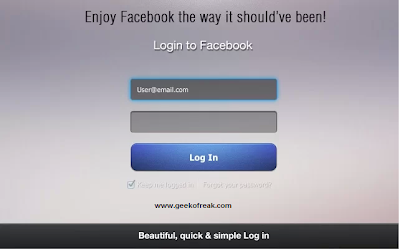
Step 4:Thats it now open Facebook and experience the whole new look of  facebook.


This is how my facebook looks ,Its just a left panel.


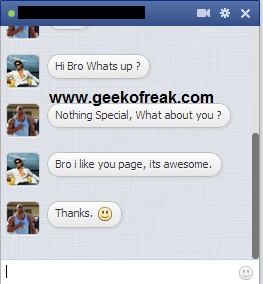
This is how my Chat box looks.


If  in case you think you want to switch to earlier layout then just click on Customize and control google chrome button on right side at top of you browser. Then navigate to Tools>extension then disable  NewGenBook Desktop


Go to link Download

Read more »

Thursday, November 3, 2016

Tweetbot released in Apple IPad A Client with Personality

Tweetbot released in Apple IPad A Client with Personality


The Tapbot team introduced a new Twitter app for the iPad users which had a revolutionary user interface with unique sound 
features, and with other EXCLUSIVE features which the
 others where not able to provide.

Last Year  the same team had come with a Twitter app for
the iPhone Users.

The allowed the users to do more with Twitter that you thought was possible by taking the APIs to its full potential.

Tweetbot was a revolutionary Twitter app for iPhone Users 

Last week Tapbots Team came up with a New Twitter app for the iPad users. They Introduced Tweetbot for iPad. They bought the same experience of their revolutionary piece to the iPhone also.


Tweetbot could be bought for $ 2.99

The homepage of the Tweetbot welcomes with an icon in  a large form and then a "Thank you for purchasing Tweetbot appears in order to thank you for supporting their efforts. 


In an improvement over its iPhone predecessor,  Tweetbot on the iPad lets you tap on the links on tweets even if you have not tapped on the link initially. It also allows you to send or share the links with your friends. Tapping and holding on a link lets you send it to Instapaper, Tweet the url, open it in Safari, Email it and copy it.


Its great pleasure to compose tweet in Tweetbot and  works well in the iPad. 

The Autocomplete feature helps the users to finish / complete the usernames, hashtags, pull in photos. 
The app also saves abandoned tweets as Drafts.


Go to link Download

Read more »

Tuesday, November 1, 2016

What Does a New Website Cost

What Does a New Website Cost


Creating a site that can not only generate enough returns to sustain any type of online business but recover capital overheads requires deliberation. One of the best ways is to decide on the cost factor for a brand new site and then deliberate on the best building platform. Usually, a professional development provider, like 1and1 website building software keeps overheads low because it doubles as a creation tool and hosting platform, which cuts the following starting costs:

The Startup Costs

Read more »

Go to link Download

Read more »

Wednesday, October 26, 2016

Tips for Designing a Great Website Color Combination

Tips for Designing a Great Website Color Combination


Love to design websites? Square buttons, round buttons, flashy buttons … will they match my shoes, my handbag or my tie? Are you stuck in a maze of buttons, headings, bullets, sub-headings and color schemes?

STOP!!!!

Take a deep breath and read some practical tips for professional looking websites.

1. Select a color scheme and stick to it.
If your company has a logo or preferred colors on its stationery that’s a good start. For those of you starting from scratch, choose two or three complementary colors and stick with them – don’t change colors on every page.

The most common color schemes include:

- Red, yellow and white
- Blue and white
- Red, Grey and white
- Blue, orange and white
- Yellow, Grey and white.

If you’re not sure what color scheme to choose, surf the internet and find a website that you like. You can then model your color scheme on what already exists.

2. Provide an easy to use navigation system.
This is one of the most important issues to consider when designing a website. You need to ensure your visitors can find what they are looking for easily. Most websites either display their navigation bar on the left or at the top. And since most people are used to this type of navigation, it’s best to stick with it.

It also helps to include your navigation bar at the bottom of each page to save your visitors from having to scroll back to the top.

3. Don’t go overboard on special effects
Whilst it is ok to have one or two special effects to jazz up your website, spinning graphics and logos often distract your visitor from the content, not to mention they can take too long to download. Your visitors may click away even before your spinning logo finishes loading.

4. Backgrounds
Ensure your visitors can read the text on the background, ie. no black writing on dark blue background or yellow on white. Also be careful that your links are visible before and after being visited. The default for links in most programs is blue (before being visited) and burgundy (after being visited), so if you have a dark background, ensure your links are light.

5. External Links
It is a good idea to open links to other websites in a new window. That way your visitors can easily return to your site when they are finished browsing the external link

6. Site Map & Search Feature
If you website is more than 15 pages, it is useful to have a site map or a “Search” feature to ensure your visitors can easily find what they’re looking for.

7. Content is King
While it is important that your website looks clean and professional, it is far more important that you concentrate your efforts on the content and promotion.

If you want a professional website, things to stay away from include:
  1. Flash intros, revolving globes, beveled line separators, animated mail boxes
  2. Loads of pop up or pop under boxes
  3. Auto play music. Allow your customer to play music only if they choose.
  4. Hit counters of the free variety, which say “you are 27th visitor”
  5. Date and time stamps, unless your website is updated daily or weekly
  6. Busy backgrounds.

Go to link Download

Read more »

Friday, October 7, 2016

Tutorial How to Make a Bootable Pen Drive using CMD Easiest Method

Tutorial How to Make a Bootable Pen Drive using CMD Easiest Method


Hello Everyone!!

Today we  are Posting about "How To Make a Bootable Pen Drive".
How-To-Make-a-Bootable-Pen-Drive

We all Use Windows, and Sometimes it gets Corrupted or We get a Lot of Virus and because of that we change Windows..

To Install Windows, we need a Bootable Disk ( NTFS type ) or a Bootable Pen Drive..

Usually, all the Disks ( DVDs ) are already NTFS Type, i.e., we Dont have to Follow any Step to Boot From Disk but when we Dont have a Bootable Disk, we need a Bootable Pen Drive to Boot From..


So, here are Some Steps that you Have to Follow to Make your Pen Drive Bootable..

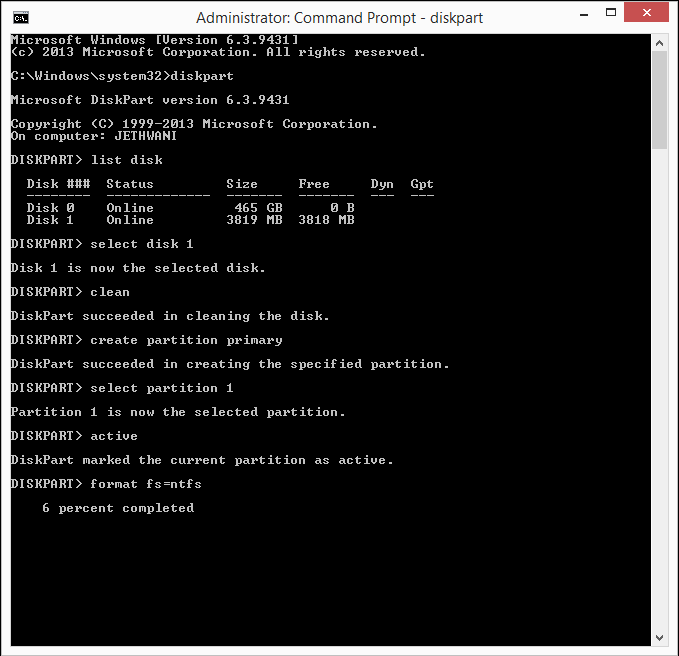
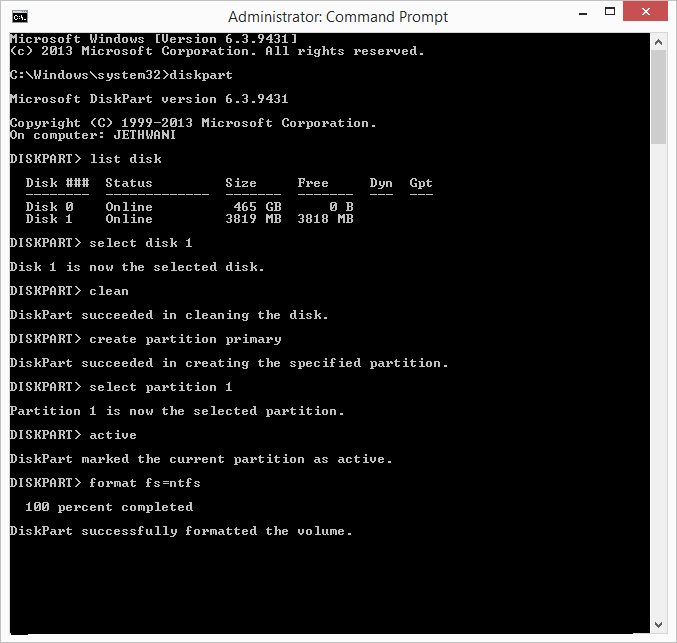
Step 1.) Click Window Key and Type "cmd" and then Run it as Administrator.
Step 2.) After you have opened cmd, type "diskpart".
Step 3.) After that type "list disk". Then it will Show you Different Disks with Their Respective Labels.
Step 4.) Once you see the Disks, Choose the One which is your pen Drive. ( You can Recognize your Pen Drive by its Size )
Step 5.) Type "select disk 1". ( In my Case, my Pen Drive is the Disk 1 )
Step 6.) Type "clean". ( It will erase everything in your Pen Drive )
Step 7.) Now, type "create partition primary".
Step 8.) Now, type "select partition 1".
Step 9.) Type "active".
Step 10.) Now comes the Main Command, type "format fs=ntfs". ( This Step will take about 15-20 Minutes Depending upon the Speed of your System and the Size of Pen Drive )
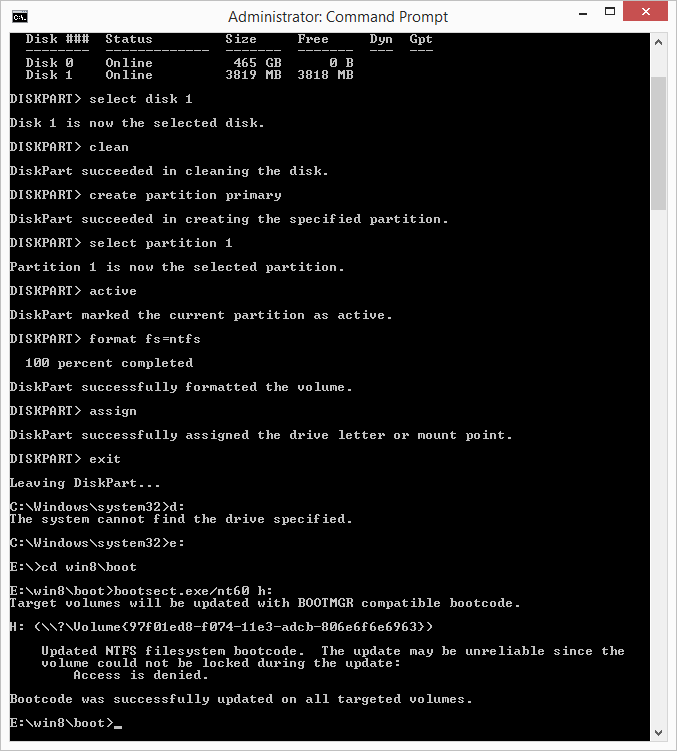
Step 11.) Once the Conversion is Completed, type "assign".

Now Open "My Computer" and you will see your Pen Drive with a Suffix, you have to Remember that. [ Ex : Removable Disk(G:) ]

Step 12.) Type "exit" to Exit from Diskpart.
Step 13.) Change your Directory from "C:WindowsSystem32" to the Directory where you have Stored Windows. [ Ex : D:win8 ]
Once in the Root Directory of your Window, goto "boot" folder [ Ex : D:win8 oot ]
Step 14.) Type "bootsect.exe/nt60 g:". ( Replace "g:" with your pen Drive Suffix )
Step 15.) Copy all the Window Files to the Pen Drive and Boot.

All Done!!

Now, you have a Bootable Pen Drive!!

To make your Pen Drive Normal, Format it with Default Options and your Pen drive will Automatically convert to Default "FAt32".


Screenshots


Screenshot 1

Screenshot 1

Screenshot 2


Screenshot 2

Screenshot 3


Screenshot 3


If you face any Problems Regarding the Trick, Post a Comment.


Liked this Post, Dont Forget to Like us on Facebook or Join us on Our Group!!
Tell Others about Us!!

Keep Visiting!! 


Posted by 

 Facebook Profile
Yogesh Jethwani.                                                                                       I am a Student of Class 12. I am very Interested in Computers and Blogging, so I decided to start "YJ-ES Latest Buzz" and I am Working hard on it.

Go to link Download

Read more »

Wednesday, October 5, 2016

Toshiba Satellite A 300 Drivers Windows XP

Toshiba Satellite A 300 Drivers Windows XP


Toshiba Satellite A 300 Driver For Windows XP

Bluetooth Monitor

Bluetooth Stack

Card Reader Controller

Chip Set Utility

Display Driver (ATI)

LAN Driver

Modem Driver (Toshiba)

Modem Driver (Motorola)

Modem on Hold Utility (Motorola)

Power Saver

Sound Driver

Touch Pad On/Off Utility (Toshiba)

Touch Pad Driver (Synaptics)

Wireless Lan Driver (Intel)

Wireless Lan Client Manager (Atheros)

Touch Pad On/Off Utility (Toshiba)

Webcam driver (Chicony)

Wireless Lan Driver (Atheros)

Wireless Lan Driver (Realtek Semiconductor Corporation)


Go to link Download

Read more »