Monday, January 30, 2017
Turning off Autorun feature in Windows 7
Turning off Autorun feature in Windows 7
According to Wikipedia, Autoplay is a feature introduced in Windows XP which automatically checks and examines removable media and devices based on content such as pictures, music or video files once inserted.
The main purpose of autorun is to have a software response to hardware actions that you start or plug on a computer. These features are typically called from removable media or from network shares. During Autoplay, the autorun.inf file from the media that is usual hidden is parsed.
Side effect
In versions of Windows that are earlier than Windows Vista and 7, when the media contains an Autorun command is inserted, the system automatically executes the program without requiring user consent.
For security reasons, you can disable the feature using your windows registry.
Open your windows registry (win + r and type “regedit”)
HKEY_LOCAL_MACHINESOFTWAREMicrosoftWindowsCurrentVersionPoliciesExplorer
If the Explorer folder doesn’t exists, you can create by using the Right-Click on Policies folder then New option and Key, then type the name “explorer”
Next create a value named “NoDriveTypeAutoRun”
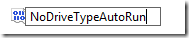
Double-Click to set the value according to the data below
NoDriveTypeAutorun
The registry value selectively disables specific Autorun features.
| Value | Meaning |
| 0xFF hex or 255 decimal | Disable Autorun on all kinds of drives |
| 0x20 hex or 32 decimal | Disable Autorun on CD-ROM drives |
| 0x10 hex or 16 decimal | Disable Autorun on network drives |
| 0x8 hex or 8 decimal | Disable Autorun on fixed drives |
| 0x4 hex or 4 decimal | Disable Autorun on removable drives |
| 0x40 hex or 64 decimal | Disable Autorun on RAM disks |
| 0x1 / 0x80 hex (128 decimal) | Disable Autorun on drives of unknown type |
Useful tip from Microsoft: If you want to turn off Autorun for both removable drives (flash drives) and for network drives, you must add 0x4 and 0x10 (0x4 + 0x10) equals 0x14 (20 decimal).
NoDriveAutoRun registry value
You can set the values on specific drive connected to the system.
e.g. decimal 13 data value corresponds to 1101 in binary.
Reading from right to left, Drive letter A, C and D are the one to be affected.
Same bits configuration procedure for RegdevelopTM! what a small world…
Using Regdevelop to create your own AutoPlayOff software
If you already familiar with windows registry, using regdevelop to create application is very easy.
Drag the CheckBox control to the form and use the configurations below

Caption
Turn Off Autorun in all kinds of drives
RegKeyPath1
HKEY_LOCAL_MACHINESOFTWAREMicrosoftWindowsCurrentVersionPoliciesExplorer
ValueName1
NoDriveTypeAutoRun
ValueData1
255
ValueType1
DWORD
DeleteWhenUnchecked
True
You’ll noticed that it is similar or the same as creating your own registry entries as shown above.

Click the Start icon to test the application and afterwards, press the Build Now option to start using the application.
That’s it!
Go to link Download

Friday, December 23, 2016
Want Windows 7 for 50 Percent Off Order an OEM Copy
Want Windows 7 for 50 Percent Off Order an OEM Copy

Missed out on the early preorder discounts? Popular retailer Newegg.com has listed the OEM prices for Windows 7, which will be offered at less than half what Microsoft will charge for a retail copy.
Newegg hasnt listed any prerequisites for buying the OEM version, such as the purchase of any additional hardware. Past OEM copies have prevented users from taking advantage of Microsofts support options, however, and the packaging and instructions are usually minimal.
For those willing to forgo the additional perks, however, the price may be worth it. Microsoft pursued a similar strategy with Windows Vista, charging "system builders," or anyone building a PC, about half of what it asked retail buyers to pay. Of course, thats nothing compared to the huge preorder discounts that Microsoft offered in September, when it offered a preordered copy for as little as $29.99.
According to a Newegg product page, a full 32-bit or 64-bit version of Windows 7 Home Premium will cost $109.99; with a $10 preorder discount that expires Oct. 20, Newegg will lower the price to $99.99. Normally, the upgrade price of Windows 7 Home Premium would be $119.99, and the full retail cost is $199.99.
The 64-bit version of Windows 7 Professional OEM will be priced at $139.99; for this version, Newegg will only offer a $5 discount, bringing the price down to $134.99. At retail, the upgrade and full versions of Windows 7 Professional would normally cost $199.99 and $299.99, respectively.
The OEM, 64-bit version of Windows 7 Ultimate, meanwhile, will be priced at $174.99. Newegg again will offer a discount of $15, good through Oct. 20, and bringing the price down to $174.99. Normally, the upgrade and full versions would cost $219.99 and $319.99 at retail.
A three-pack of Windows 7 Home Premium OEM will cost $309.99, while a three-pack of Windows 7 Ultimate OEM will cost $549.99. Newegg did not advertise a price for the three-pack version of Windows 7 Professional OEM.
Windows 7 ships to retailers on Oct. 22. While reports have circulated that Windows 7 may chip early, Microsoft said that users will probably receive Windows 7 when retailers do.
Via : PCMAG.COM
Go to link Download
Sunday, December 4, 2016
Turn on off Windows 8 Faster Startup
Turn on off Windows 8 Faster Startup
Windows Fast startup is a configuration setting that helps your computer start up faster after shutdown. Windows 8 does this by saving system information to a file upon shutdown. When you start your computer again, Windows uses that system information to resume your computer instead of restarting it.
Notes
•The faster startup configuration setting doesn’t apply to Restart. You need to shutdown and then start your computer again for Windows faster startup to take effect.
•Windows Faster startup is turned on by default in Windows.
The Faster Startup Checkbox option can be found at Power option System settings. Here’s how to access the option via a User Interface.
Go to your power option by clicking the Power Plug icon and then Click More power options. Or use your Run Window (Win+R) and type: control /name microsoft.poweroptions

Once inside the power option window, at the left pane click “Choose what the power buttons do”

System settings of power option window will be launch and you need to click or go for UAC verification inorder to edit the power settings: Change settings that are currently available as shown below

Control PanelHardware and SoundPower OptionsSystem Settings
At the bottom part, you’ll be able to enable and disable “Turn on fast startup” option

The Fast startup helps start your PC faster after shutdown. Restart is not affected.
Thanks for reading the optimization tip!
Go to link Download
Tuesday, September 27, 2016
VB Shutdown Restart Log Off Code
VB Shutdown Restart Log Off Code

VB 6.0 can be used to invoke shell script commands of the windows api with a code.
This shell script command can be used to perform shutdown or restart tasks..
Call Shell("Shutdown /s") to shutdown
Call Shell("Shutdown /r") to restart
Call Shell("Shutdown /l") to log off
Call Shell("Shutdown /a") to Abort
Go to link Download
Thursday, September 8, 2016
Turn off the annoying social features in Google Reader
Turn off the annoying social features in Google Reader
Even though Google Reader is probably the best and most widely used application for following RSS feeds, it still has it’s problems and shortcomings. After the launch of Google Buzz, one of the most common complaint was the connection with Buzz, because it generates duplicates and disables comments on buzz originating in Google Reader.
Since Buzz doesn’t have a way to filter content (yet), for some the only solution to separate the two would be to hide the items shared by others in Google Reader and using only Buzz for social interactions. Unfortunately, if you follow a lot of people, hiding their shared items from the sidebar one by one can be time-consuming.
Apparently, the Reader team has developed a faster way to turn off shared items and I found it on Twitter, when somebody asked them this question. While you are on the Google Reader page, simply type the following JavaScript command in the address bar of your browser and hit ‘Enter’:
javascript:antisocial(true)
After the page reloads, the ‘People you follow’ section from the sidebar will be completely hidden. Furthermore, keyboard shortcuts linking to these items and comments will no longer work. It’s a pretty complete solution!


Antisocial Reader off Antisocial Reader on
The setting seems to be stored in a cookie, because loading Reader in another browser reverts to the usual, ‘social’ interface. So, if you want to go back to the standard you can clear the cookies or use the same JavaScript code to set the variable to ‘false’: javascript:antisocial(false).
I would recommend however not to play around with this toggle too much; I have noticed that Reader tends to become unstable and slow if you use it too often. It starts to display errors and stops loading shared items, even in the default state. Maybe it’s still experimental, but it would be great if the toggle would be integrated in the settings and stored in the Google account, like for the followed blogs from Blogger.
Via http://exde601e.blogspot.com/2010/04/turn-off-social-features-in-google.html
Go to link Download