Showing posts with label tips. Show all posts
Showing posts with label tips. Show all posts
Friday, January 20, 2017
Windows 10 Tips Tricks Apps Volume 1
Windows 10 Tips Tricks Apps Volume 1

That’s where Windows 10 Tips, Tricks & Apps comes in. In this bookazine we’ll talk you through how to get the most out of Microsoft’s built-in apps, how to tweak the OS to fi t your needs and which of the thousands of apps available from the Windows Store are really worth your time.

Go to link Download

Sunday, December 25, 2016
Tips Rahasia Cara Agar Doa Dikabulkan Menurut Al Quran
Tips Rahasia Cara Agar Doa Dikabulkan Menurut Al Quran

Rafi Orilya, Hai sobat semua ketemu lagi di blog tercinta ini. Kali ini kita akan membahas tentang Tips Rahasia Cara Agar Doa Dikabulkan Menurut Al Quran, tips-tips ini jangan dijadikan sebagai panutan hanya berdoa saat-saat itu saja. Karena tidak mungkin sebuah permintaan akan dikabulkan jika permintaannya hanya sekali dan tidak dilakukan secara sungguh-sungguh.
Jika doa telah kita ucapkan jangan berharap semua akan dikabulkan dengan mudah tanpa adanya IKHTIAR/USAHA. Yap seperti yang sudah dijelaskan pada artikel Tahap Terkabulnya Doa Yang Bersifat Umum semua akan terkabulkan jika dalam diri kita sudah menjadi seseorang yang baik yang mendapat ridho Allah SWT.
Baik berikut Tips Rahasia Cara Agar Doa Dikabulkan Menurut Al Quran :
- Berdoalah menghadap kiblat dan mengangkat kedua tangan
- Berdoalah dengan suara yang lirih, khusyu dan rendah hati dengan timbulnya air mata
- Yakinlah kepada Allah SWT doa anda akan dikabulkan
- Berdoalah pada waktu yang mustajab bisa dilihat pada artikel Waktu Mustajab untuk Berdoa Agar Dikabulkan
- Sebelum berdoa berilah pujian kepada Allah SWT dan membaca shalawat kepada nabi Muhammad SAW
Nah demikianlah Tips Rahasia Cara Agar Doa Dikabulkan Menurut Al Quran, semua harus dilakukan dengan sungguh sungguh dengan tetap menjalankan segala perintah allah dan menjauhi segala larangannya serta diiringi dengan IKHTIAR / USAHA yang terbaik.

Semoga artikel kali ini dapat bermanfaat untuk anda, jika berkenan sempatkan waktu untuk mengirim komentar dibawah dan mengklik iklan yang tampil dibawah ini sebagai ucapan terima kasih dan sebagai motivasi kami untuk terus memberikan informasi menarik lainnya.
Go to link Download
Tuesday, December 20, 2016
Tips to Type Quicker on Windows Phone
Tips to Type Quicker on Windows Phone

Microsoft has worked hard to make it the most fluent and user-friendly keyboard around. By incorporating Word Flow, which learns from the way you type and predicts the words you’re likely to use, to the uniformity of how to find shortcuts, it’s a treat to use. What’s more, we’ve found it certainly works faster and more intuitively than rival keyboards on Android or iPhone.
The keyboard is great as it comes with a host of features that makes typing quick and easy, from predicative text to autofill features and even neat little tricks waiting to be discovered. What’s more, the more you use it the better it gets as the keyboard learns those words and phrases you use the most commonly and uses these as its suggestions.
Read more »
Go to link Download
Friday, December 2, 2016
Tips To Reduce Blog Load Time
Tips To Reduce Blog Load Time
1.Avoid JavaScript
JavaScript makes page loading speed slow. Try to remove unnecessary JavaScript codes from your blog. Don’t link to external sites for storing your JavaScript codes whilst you can save them inside your blogger blog. You can save your all JavaScript codes in your template above by using the code below,<script type=’text/javascript’>
//<![CDATA[
Paste Your JavaScript Code Here
//]]>
</script>
Just replace the bolded text with the JavaScript code you want to store in your template.
2.Widgets and Social Media Buttons
Widgets and social media buttons are really very important but use of too many social media buttons and unnecessary widgets can slower your blog. Try to remove widgets that are not really necessary for your blog and use social media buttons wisely.3.Give Proper Dimensions To Images
Always give proper height and width to the images you are using in your posts, because it help the browsers to load the image quickly. To give height and width attribute to your images use below code.<img width=”" height=”" src=”URL Of Image” />
4.Don’t Use An Image As A Background
If your blog template have image as a background, then remove it. A background image is responsible for slow loading speed. Always use background colors not an image. To remove background image simply search below code and remove it from your template.body { background: #B3B3B3 url(http://abc.com/background-image.jpg);
The code will surely be different in your template. To remove background image, search this type of code in your template and simply remove the text which looks like the bold text.
5.Reduce Advertisement On Blog
Advertisement banners are coded with JavaScript. As I already told you in tip no 1 that too much use of JavaScript make blog loading speed slower. So please use limited advertisements on your blog. 6.Limited Number Of Posts At Home Page
Try to show only 4-5 posts at your Homepage because if you use too many posts to show at Homepage then it will take more time to load. Fast loading Homepage keeps your visitors happy and they will stay at your blog for long time. If you don’t know how to set number of posts on Homepage then see the screenshot below.
7.Always Use Quality Blogger Templates
Most of newbie bloggers do this mistake. They upload any template that attracts them. There are lot of templates available on the internet but most of them are improper scripted. Using of those templates make job tough for search engine spiders to crawl your blog. You can use these Blogger Templates for your blog as they all are developed by a certified professional.8.Use Read More Link To Summarize Blog Posts At Homepage
Always summarize your blog post for Homepage by using a read more link. It has two benefits.Improve Blog Load Time.
Increase Page views and Reduce Bounce Rate.
9.Eliminate External Links
Eliminate all unnecessary external links from your blog. One common example for this is using stat counters. You can use Google Analytics instead of stat counter widgets to check your website traffic status.How To Check Blog Load Speed?
There are lot of tools available on the internet which can be used to check your blog load time. Here I am listing two famous tools.Google PageSpeed Insight
Pingdom Tools
Just open the link and type your blog address like this.
http://www.your-blog-address.blogspot.com/
Go to link Download
Thursday, December 1, 2016
Top 10 Tips to Save Smartphone Battery
Top 10 Tips to Save Smartphone Battery

Learn How to Save Smartphone's Battery life with Top 10 Best Tips to Save Smartphone's Battery life By XPCMasti
Go to link Download
Thursday, November 24, 2016
Windows 8 tips trik dan rahasia
Windows 8 tips trik dan rahasia
Windows 8 tips, trik dan rahasia
Windows 8 telah bersama kami selama lebih dari satu tahun sekarang, dan jika Anda terbiasa dengan versi sebelumnya dari Windows maka Anda akan melihat cukup banyak yang telah berubah. Pada kenyataannya, Windows 8 telah terlihat perubahan terbesar sejak melompat dari Windows 3.1 untuk Windows 95
Keluar masuk Start menu, datang mulai berorientasi touch layar baru dengan baru Windows 8 bergaya apps dan konvensi antarmuka baru. Bahkan berpengalaman pengguna PC mungkin kurang familier, disini ada tip dan trick untuk mengatasi hal tersebut.
Jangan putus asa, meskipun, bantuan berada di tangan. Kami sudah melongokkan sekitar setiap bagian dari Windows 8, mengungkap banyak dari yang paling penting tips dan trik, jadi Bacalah Panduan kami dan Anda akan segera dilengkapi untuk mendapatkan hasil maksimal dari Microsoft rilis terbaru.
1. Buka dari layar kunci
Windows 8 terbuka pada layar kunci, yang tampak cukup tapi sayangnya menampilkan tidak ada petunjuk tentang apa yang harus dilakukan selanjutnya.
Ini semua sangat sederhana, meskipun. Hanya tekan spasi, berputar roda mouse atau geser ke atas pada layar sentuh untuk mengungkapkan layar login reguler dengan nama pengguna yang Anda buat selama instalasi. Masukkan sandi Anda untuk memulai.
2. Menangani navigasi dasar
Interface Windows 8 yang semua berwarna-warni ubin dan ramah sentuhan apps. Dan jika Anda menggunakan tablet maka itu akan semua menjadi sangat sederhana: hanya menggesek kiri atau kanan layar, dan ketuk setiap ubin menarik.
Pada desktop biasa, meskipun, Anda mungkin atau berputar roda mouse untuk menggulir ke belakang dan ke depan.
Dan Anda juga dapat menggunakan keyboard. Tekan tombol rumah atau akhir untuk melompat dari satu ujung layar awal Anda yang lain, misalnya, kemudian gunakan tombol kursor untuk memilih ubin tertentu, menekan Enter untuk memilihnya. Tekan tombol Windows untuk kembali ke layar awal; Klik kanan (atau babatan turun pada) aplikasi Anda tidak perlu dan pilih Unpin untuk menghapus mereka; dan drag dan drop yang lain ubin di sekitar mengatur mereka sebanyak yang Anda suka.
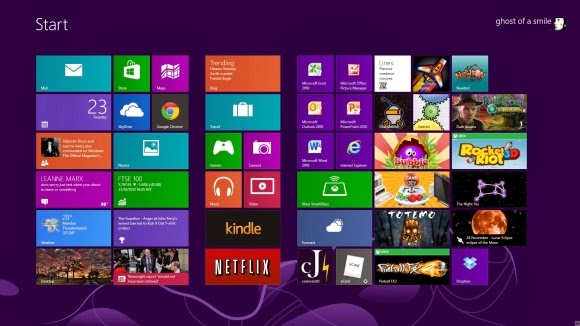
3. Kelompok apps
Apps layar mulai awal ditampilkan dalam urutan cukup acak, tetapi jika Anda menginginkan yang lebih teratur maka sangat mudah untuk menyortirnya ke dalam grup kustom.
Mungkin anda bisa menarik Mail, pesan, dan kalender atas ke kiri, misalnya, untuk membentuk kelompok Person terpisah. Klik ikon minus di sudut kanan bawah layar untuk memperkecil dan Anda sekarang akan menemukan Anda dapat drag dan drop grup baru (atau yang lainnya) di sekitar sebagai sebuah blok. Klik kanan dalam blok (sementara masih diperbesar) dan Anda juga akan mampu memberikan kelompok nama, yang - jika Anda keluar untuk menambahkan aplikasi lain 20 atau 30 ke layar awal Anda - akan membuatnya lebih mudah untuk menemukan alat yang Anda butuhkan.
Windows 8.1 sekarang menyediakan khusus Customise modus dengan fungsi yang sama. Klik kanan bagian kosong dari layar awal, atau babatan, ketuk Customise, maka drag dan drop ubin atau mengubah nama grup app untuk apa pun yang Anda butuhkan.
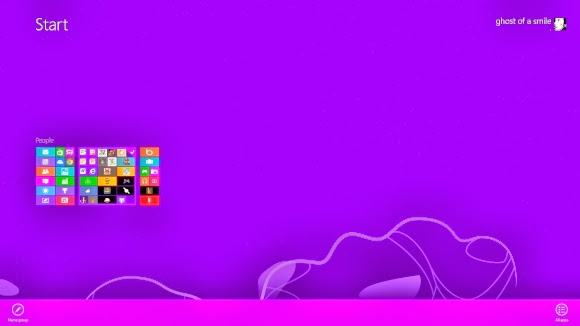
4. Gunakan menu akses cepat
Klik kanan di sudut kiri bawah (atau tekan tombol Windows dan tekan X) untuk menu berbasis teks yang menyediakan akses mudah ke banyak berguna applet dan fitur: Device Manager, Control Panel, Explorer, kotak dialog Search dan banyak lagi. Download Win + X Menu Penyunting dan Anda akan dapat lebih lanjut menyesuaikan daftar dengan program-program Anda sendiri.
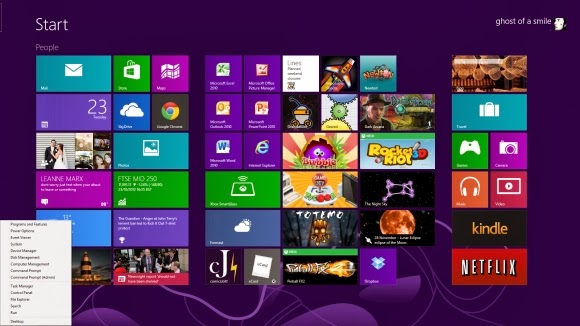
Klik kanan di sudut kiri bawah (atau tekan tombol Windows dan tekan X) untuk menu berbasis teks yang menyediakan akses mudah ke banyak berguna applet dan fitur: Device Manager, Control Panel, Explorer, kotak dialog Search dan banyak lagi. Download Win + X Menu Penyunting dan Anda akan dapat lebih lanjut menyesuaikan daftar dengan program-program Anda sendiri.
5. Temukan aplikasi Anda
WIN + X menu berguna, tetapi tidak ada pengganti untuk Start menu lama seperti itu tidak memberikan akses ke aplikasi Anda. Tekan Ctrl + Tab, klik tombol tanda panah di bagian bawah kiri layar mulai, atau babatan dari bagian bawah layar dan daftar program yang diinstal Anda akan muncul. Jika Anda tidak dapat melihat apa yang Anda butuhkan segera, mulai mengetik nama aplikasi untuk mencarinya. Atau, di Windows 8.1, klik tanda panah di sebelah kanan "Apps" untuk menyortir program Anda dengan tanggal diinstal, sebagian digunakan, kategori atau nama.
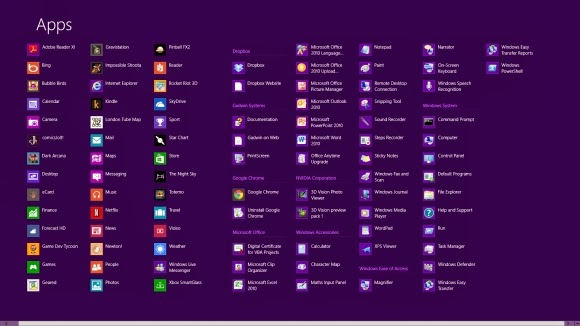
6. membuat akses lebih mudah
6. membuat akses lebih mudah
Jika ada aplikasi yang Anda gunakan sepanjang waktu maka Anda tidak perlu mengakses melalui sistem pencarian. PIN ke layar awal dan akan tersedia di klik.
Mulai ketikkan bagian dari nama aplikasi Anda. Untuk mengakses Panel kontrol, misalnya, ketik Kontrol. Klik kanan ubin Control Panel pada layar aplikasi pencarian, lalu klik Pin awal. Jika Anda menggunakan layar sentuh, tekan dan tahan ikon, kemudian gerakkan ke bawah dan pilih Pin awal.
Sekarang tekan tombol Windows, gulir ke kanan dan Anda akan melihat ubin Control Panel di ujung. Drag dan drop ini atas ke kiri di suatu tempat jika Anda ingin itu lebih mudah diakses, lalu klik ubin untuk membuka desktop dengan jendela Panel kontrol, dan tekan tombol Windows untuk kembali ke layar awal ketika Anda sudah selesai.
7. menutup/ shut down
Untuk menutup Windows 8, hanya memindahkan kursor mouse ke sudut kanan bawah layar, klik ikon pengaturan - atau hanya menekan tombol Windows dan tekan- dan Anda akan melihat tombol power. Klik dan pilih Shut Down or Restart.
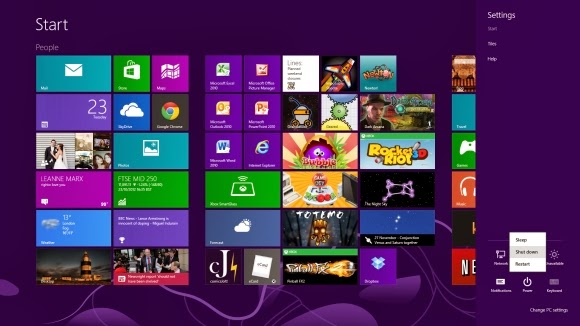
Mulai ketikkan bagian dari nama aplikasi Anda. Untuk mengakses Panel kontrol, misalnya, ketik Kontrol. Klik kanan ubin Control Panel pada layar aplikasi pencarian, lalu klik Pin awal. Jika Anda menggunakan layar sentuh, tekan dan tahan ikon, kemudian gerakkan ke bawah dan pilih Pin awal.
Sekarang tekan tombol Windows, gulir ke kanan dan Anda akan melihat ubin Control Panel di ujung. Drag dan drop ini atas ke kiri di suatu tempat jika Anda ingin itu lebih mudah diakses, lalu klik ubin untuk membuka desktop dengan jendela Panel kontrol, dan tekan tombol Windows untuk kembali ke layar awal ketika Anda sudah selesai.
7. menutup/ shut down
Untuk menutup Windows 8, hanya memindahkan kursor mouse ke sudut kanan bawah layar, klik ikon pengaturan - atau hanya menekan tombol Windows dan tekan- dan Anda akan melihat tombol power. Klik dan pilih Shut Down or Restart.
Dalam Windows 8.1, tekan Win+X, klik Shut down or sign out dan Pilih opsi yang Anda butuhkan.
Go to link Download
Wednesday, November 9, 2016
Tips to Fix High CPU Usage In Windows
Tips to Fix High CPU Usage In Windows

If your computer fans frequently hit top speeds, it’s a sign that your CPU is fully loaded. Simultaneously, your computer may slow down. That’s annoying, especially if you’re not actually doing anything.
Read more »
Go to link Download
Wednesday, October 26, 2016
Tips for Designing a Great Website Color Combination
Tips for Designing a Great Website Color Combination

Love to design websites? Square buttons, round buttons, flashy buttons … will they match my shoes, my handbag or my tie? Are you stuck in a maze of buttons, headings, bullets, sub-headings and color schemes?
STOP!!!!
Take a deep breath and read some practical tips for professional looking websites.
1. Select a color scheme and stick to it.
If your company has a logo or preferred colors on its stationery that’s a good start. For those of you starting from scratch, choose two or three complementary colors and stick with them – don’t change colors on every page.
The most common color schemes include:
- Red, yellow and white
- Blue and white
- Red, Grey and white
- Blue, orange and white
- Yellow, Grey and white.
If you’re not sure what color scheme to choose, surf the internet and find a website that you like. You can then model your color scheme on what already exists.
2. Provide an easy to use navigation system.
This is one of the most important issues to consider when designing a website. You need to ensure your visitors can find what they are looking for easily. Most websites either display their navigation bar on the left or at the top. And since most people are used to this type of navigation, it’s best to stick with it.
It also helps to include your navigation bar at the bottom of each page to save your visitors from having to scroll back to the top.
3. Don’t go overboard on special effects
Whilst it is ok to have one or two special effects to jazz up your website, spinning graphics and logos often distract your visitor from the content, not to mention they can take too long to download. Your visitors may click away even before your spinning logo finishes loading.
4. Backgrounds
Ensure your visitors can read the text on the background, ie. no black writing on dark blue background or yellow on white. Also be careful that your links are visible before and after being visited. The default for links in most programs is blue (before being visited) and burgundy (after being visited), so if you have a dark background, ensure your links are light.
5. External Links
It is a good idea to open links to other websites in a new window. That way your visitors can easily return to your site when they are finished browsing the external link
6. Site Map & Search Feature
If you website is more than 15 pages, it is useful to have a site map or a “Search” feature to ensure your visitors can easily find what they’re looking for.
7. Content is King
While it is important that your website looks clean and professional, it is far more important that you concentrate your efforts on the content and promotion.
If you want a professional website, things to stay away from include:
- Flash intros, revolving globes, beveled line separators, animated mail boxes
- Loads of pop up or pop under boxes
- Auto play music. Allow your customer to play music only if they choose.
- Hit counters of the free variety, which say “you are 27th visitor”
- Date and time stamps, unless your website is updated daily or weekly
- Busy backgrounds.
Go to link Download
Sunday, October 23, 2016
Top 10 Windows 8 tips and tricks
Top 10 Windows 8 tips and tricks
Top 10 Windows 8 tips and tricks
Update to Windows 8.1
Microsoft has released Windows 8.1, which is a free upgrade for anyone running Windows 8. This update addresses many of the problems users have had with Windows 8 and also adds a Start button. Visit Microsofts Windows 8.1 page for the update.
Customize your tiles
 Make the most of your Windows Start screen tiles by adjusting the sizes, where they are located, and what is listed.
- Move any tile by clicking and dragging the tile. While moving a tile, if you need a larger view of the Start screen move the tile towards the top or bottom of the screen to zoom out.
- Use your mouse wheel to scroll left-to-right through your tiles.
- Any Desktop shortcut or program can be pinned to the Start screen by right-clicking the icon and choosing Pin to Start.
- In the bottom right-hand corner of the start screen is a magnifying glass with tiles, click this icon to get a zoomed out view of your Start screen. In this view, if you right-click on a group of tiles youll be given the option to name group, which can be useful if you have a group of related tiles (e.g. games). In this view, you can also click and drag a group to organize your tile groups.
- Create a new speed bump between tile groups by moving a tile to a speed bump.
- Resize any User tile or Live tile by right-clicking the tile and choosing resize.
- If there is a tile you want on your Taskbar, right-click the tile and choose Pin to taskbar.
- Show admin applications on the Start screen by clicking Settings in Charms, click Settings, and change the Show administrative tools from No to Yes.
- In Internet Explorer 10, you can also pin any of your favorite web pages to your Start Screen.
Windows 8 keyboard shortcuts
Knowing at least some of the Windows 8 keyboard shortcuts helps make your Windows 8 experience much more enjoyable. Try to memorize these top Windows 8 shortcut keys.
- Press the Windows key to open the Start screen or switch to the Desktop (if open).
- Press the Windows key + D opens the Windows Desktop.
- Press the Windows key + . to pin and unpin Windows apps on the side of the screen.
- Press the Windows key + X to open the power user menu, which gives you access to many of the features most power users would want (e.g. Device Manager and Command Prompt).
- Press the Windows key + C to open the Charms.
- Press the Windows key + I to open the Settings, which is the same Settings found in Charms.
- Press and hold the Windows key + Tab to show open apps.
- Press the Windows key + Print screen to create a screen shot, which is automatically saved into your My Pictures folder.
See our Windows shortcuts page for a full listing of all Windows shortcuts.
Know your hot corners
The corners on your screen are hot corners and give you access to different Windows features. Below, is a brief explanation of each of these corners.
Bottom Left-hand corner
The bottom left-hand hot corner of the screen allows you to access the Start screen. If youre in the Start screen and have the Desktop open, this corner opens the Desktop from the Start screen.
Tip: Right-clicking in the left hand corner opens the power user menu.
Top-left corner of the screen
Moving the mouse to the top-left corner and then down displays all the apps running on the computer. Clicking and dragging any of these apps to the left or right-hand side of the screen will snap that app to that side of the screen. Each of these open app icons can also be right-clicked to close or snap.
Right-hand side of the screen
On the full right-hand side of the screen will be given access to the Windows Charms.
Taking advantage of search
The Search in Windows 8 has been significantly improved when compared to all previous versions of Windows. To search for a file or run a program in Windows 8 from the Start screen just start typing what youre trying to find or want to run.
As you begin typing, the results will start appearing on the left-hand side. The Search also supports limiting the search to apps such as Finance, People, Maps, Photos, Mail, Music, Videos, Weather, and much more. If what you are searching for is not a file or program, click on the app you want to use as the search. For example, if you were searching for "New York" and selected the Weather App you would be shown the weather in New York, NY.
By default, Search organizes the available Apps by how frequently they are used and then in alphabetical order. If you want to keep your favorite app at the top of the Search list, right-click the app and choose Pin. Pinning the app will lock it in place regardless of how often it is used. If there is an app you dont want (e.g. Finance) you can turn on and off any of the search apps through the PC settings, which is found under the Settings in the Charms.
Bonus tip: The Search is also found through Charms and can also be opened by pressing Windows key + F.
Running two apps side by side
Any app can be pinned to the left or right-hand side of the screen. For example, open the People app and then press the Windows Key + . (period) to move that app to the right-hand side of the screen, pressing the same keys again will move it to the left-hand side, and pressing the same keys again makes it full screen. While an app is pinned, any other app or program can be opened and loaded into the available space on the screen. For example, in the picture below, weve opened a browser window and have the People app running to monitor our social networks.

Any open app can also be pinned using your mouse by clicking at the top of the tile and dragging it to the left or right-hand side of the screen.
Bonus tip: The Desktop can also be pinned to the left or right-hand side of the screen.
Note: For snap to work properly your resolution must be at least 1,366 x 768.
Windows 8 Task Manager
The Windows 8 Task Manager has been significantly improved over previous versions of Windows. Some of the changes include a total percent usage of your Processes, improved Performance graphs, a Startup tab to see startup processes, and the App history tab (as shown below) for total resources an app. Press Ctrl + Shift + Esc to start exploring the new Task Manager.

Use a picture password to log into your computer
Windows 8 includes a new feature called Picture password, which allows you to authenticate with the computer using a series of gestures that include circles, straight lines, and taps. Enable this feature if you want a new way to access your computer or have a hard time with passwords.
- Open the Windows Charms.
- Click Settings and then More PC settings
- In the PC settings window click Users and then select Create a picture password
Bonus tip: A four digit pin password can also be created and used to access your computer.
Take advantage of Windows 8 apps
Windows 8 comes included with several apps to help you get the most from your computer. Below are just a few of the included apps.
People
Microsoft touts the People feature in Windows 8 because they understand how many people are using social networks today. In the People feature youll be able to connect your Windows computer to all the major social networks including Facebook, LinkedIn, and Twitter. Once connected, you can pin the people app and monitor your social network (as shown below), use People in Search to find people, and get an overview of what is happening in all your social networks.
Reader
The Reader app gives you PDF support right out of the box.
SkyDrive
The SkyDrive app gives you access to the Microsoft cloud service for storing photos, documents, and other files in a cloud and access or share those files easier.
Store
Take advantage of the Windows Store and install one or more of the thousands of available apps designed for Windows 8. The Store is found in the Start screen, or use Search to search the Store app for any apps that you are trying to find.
Know the answers to common questions
Windows 8 is the biggest change to Microsoft Windows since the introduction of Windows 95, which was released all the way back in 1995. Since so many people have grown up with Windows, it can be difficult to transition to a new way of doing things. Below, is a short list of the most common questions previous Windows users have.
- How can I close an app in Windows 8?
- How do I sleep, restart, or shut down Windows 8?
- How do I get the start button back in Windows 8?
Know the Jargon
Knowing all the new jargon introduced with Windows 8 help improve your familiarity with Windows 8 and make it a more enjoyable experience. Below, are just a few links to the most commonly used Windows 8 terms.
- Charms
- Lock screen
- Picture password
- Pin
- Power User Task Menu
- Snapped app
- Speed bump
- Start screen
- Tile, User Tile, and Live Tile
- Windows Store
Go to link Download
Wednesday, October 19, 2016
Useful Tips To Relieve Bloated Stomach
Useful Tips To Relieve Bloated Stomach
Author: Kiran Tamada
Bloating is not a disease by itself. It is more of an indication of some other serious underlying medical condition related to digestive disorders such as indigestion. Nowadays with introduction of pre-packed foods, fast food and ready made food, people are opting for these kinds of food due to their hectic life style and constraint of time which in turn is causative factor for digestive disorders such as bloated stomach, trapped wind, indigestion, etc. Also irregular and unusual eating habits are other factors for bloated stomach.Stomach bloating is when the abdomen feels full and tight, even when you have not just eaten. It most often occurs in the small intestine rather than the stomach, as most people believe. And the most common cause is irregular digestion that produces gas at a higher rate than normal. Some of the causes of bloated stomach are; eating too fast, swallowing air, eating food too fast, lactose intolerance or certain food intolerances.
Females generally suffer from a bloating known as pre-Menustral bloating. This usually occurs during the pre- Menustral cycle where legs and hands swell up.
In Medical parlance, bloated stomach is defined as excessive gas in the stomach. If you are suffering from it or not, you can identify the same using the below guidelines:
Passing of excessive gas/wind
Painful Stomach Cramps
Bloated Abdomen
Feel very uncomfortable with tight clothes
Identification of the causative factor is the key element for proper dianosis and remedy. As discussed above, pre-packaged food, ready made food contain chemical additives in small quantities which are quite harmless, but over a period of time, they build up in the body and become causative factor for bloated stomach. To identify these additives, a technique known as flat stomach can be very helpful. You can identify the cause by reducing the particular kind of food which you feel is causing the bloated stomach and once you have identified it, avoid that food and get rid of it.
If you are taking Buffalo milk regularly, it is time to minimize its intake. Buffalo milk is deficient in Lactose. Lactose is an enzyme that helps in digestion of milk by breaking glucose. As matter of fact 1 ounce of undigested milk produces one gallon of gas, hence reduction of buffalo milk can prevent bloated stomach to an extent.
Consumption of excess wheat also produces lot of gas. A protein called gluten is responsible for production of gas.
Other factors responsible for production of gas are antibiotics, sweets and salt. Excess consumption of these items results in excess production of gas; avoid eating lot of sweets and foods containing high salt.
In nut shell, proper kind of diet, consumption of wholesome food and proper exercise can prevent bloated stomach.
Article Source: http://kirantamada.articlesbase.com/health-articles/useful-tips-to-relieve-bloated-stomach-276407.html
About the Author
For tips to relieve digestive disorders and for more information about bloated stomach please visit our sitewww.digestivecare.co.uk - bloated stomach
Go to link Download
Tuesday, October 18, 2016
Top 10 Internet tips and tricks
Top 10 Internet tips and tricks
Top 10 Internet tips and tricks
Computers have simplified our life to a great extent. Things that were impossible earlier can now be completed instantly thanks to computers. However, this does not mean that a PC is all work and no play.You dont need the Portion of a web page
When entering an Internet address you do not need to type http:// or even www. in the address. For example, if you wanted to visit Computer Hope you could just type computerhope.com and press enter. To make things even quicker, if you are visiting a .com address you can type computerhope and then press Ctrl + Enter to type out the full
Go to link Download
Friday, October 7, 2016
Tips Trik Cheat Money Dragon City
Tips Trik Cheat Money Dragon City
Cara Terbaru Mendapatkan Money di Dragon City 2013| Dragon city adalah suatu permainan facebook yang sangat menyenangkan , kali ini saya ingin berbagi sedikit tips nih untuk Mendapatkan Money di Dragon City . Mari deh simak ya

2. Buka Cheat engine
3. Klik ikon komputer mini untuk "Pilih proses untuk membuka"
4. Pilih-plugin_container.exe jika Anda menggunakan firefox atau chrome.exe jika Anda menggunakan google chrome (di bawah rundll32.exe)
5. Mengubah Tipe Nilai dari 4 byte ke Teks
6. Pindai " eggs "
7. berubah menjadi: infinite
8. Kunjungi teman Anda kemudian kembali ke kota Anda dan membangun Habitat sebanyak yang Anda inginkan.
9. Kunjungi gunung pemuliaan dan roti Coral Dragons
10. Kombinasi Tanaman dan Air cheat
11. Mengubah Tipe Nilai untuk Double
12. Scan 1800 (Setara dengan 30 menit )
1h = 3600
1h30m = 5400
2h = 7200
3h = 10800
4h = 14400
5h = 18000
6h = 21600
7h = 25200
8h = 28800
9h = 32400
10h = 36000
11h = 39600
12h = 43200
Catatan : Jika Hatchery mengatakan penuh! mengunjungi teman dan kembali lagi ke kota Anda. Tunggu 12h untuk menetas telur dan menjual Coral Naga untuk 250.000 Emas !Tip! Jika Anda menetas 20 Dragons Coral Anda akan mendapatkan 5.000.000 Emas !
Go to link Download
Tuesday, October 4, 2016
tips cara merawat computer
tips cara merawat computer

Seiring dengan banyaknya software / program yang di install di komputer, sering kita merasa kinerja komputer kita menjadi semakin lambat. Atau kadang kita tahunya komputer kita semakin lambat kinerjanya. Hal ini wajar apalagi dengan semakin lamanya penggunaan komputer dengan berbagai program didalamnya.
Sebenarnya kinerja komputer bisa dipengaruhi oleh banyak faktor, baik software maupun hardware. Ada berbagai tips yang dapat dilakukan agar kinerja komputer menjadi lebih baik. Berikut beberapa tips yang mungkin dapat dilakukan dan mungkin sebagian sudah umum kita lakukan atau kita dengar.
1. Uninstall Program yang Tidak Dipakai
Meskipun tidak dijalankan, program yang jarang atau tidak pernah digunakan bisa ikut mempengaruhi kinerja komputer. Terutama program yang menyimpan seting-setingnya di registry. Mengapa? Karena setiap kali komputer dijalankan, registry windows akan di load ke memory, sehingga semakin besar ukurannya, memori yang digunakan akan semakin besar pula.
2. Periksa Program yang Otomatis Berjalan di Windows
Hal ini bisa di cek dengan program seperti autoruns. Biasanya ada beberapa program yang selalu berjalan yang sebenarnya tidak begitu penting atau kurang penting.
3. Defragment Harddisk
Ini bisa dilakukan melalui Start Menu -> Accesories > System Tools > Disk Defragment. Yang tujuannya untuk menata kembali file-file sesuai prioritasnya.
4. Matikan Service yang Tidak Terpakai
Hal ini memerlukan sedikit pengetahuan tentang komputer. Services merupakan program/library juga yang dijalankan setiap komputer hidup. Bisa dilihat melalui Control Panel > Administrative Tools > Services. Jika komputer tidak pernah digunakan online (internet), ada beberapa service yang bisa di non aktifkan.
Misalnya Windows Time dan beberapa service lainnya (bisa di cek keterangannya). Tapi hal ini juga perlu berhati-hati, jika salah bisa menyebabkan beberapa fungsi windows tidak berjalan.
5. Hindari Penggunan Skin windows
Kadang penggunaan tampilan/skin tambahan windows bisa mempengaruhi kinerja cukup signifikan. Terutama penggunaan software tambahan. Sebaiknya jika ingin tampilan yang berbeda gunakan saja Windows Themes (bawaan windows).
6. Matikan Beberapa Efek Visual Windows
Selain itu beberapa efek windows xp yang tidak begitu penting bisa di matikan. Bisa di dilakukan melalui klik kanan di My Computer pilih Properties. Di tab Advanced di bagian Performance klik tombol Settings. Bisa di non aktifkan Visual efek yang tidak begitu penting.
7. Batasi Tambahan Jumlah Font
Ini berpengaruh ke aplikasi yang menggunakan Pilihan font seperti MicrosoftOffice. Dengan banyaknya font tambahan akan mempengaruhi ke memori yang digunakan dan loading akan terasa lebih lambat.
8. Hapus Icon di Desktop yang Tidak Penting
Sering program yang di install di komputer akan membuat shortcut baru (icon) di desktop. Jika kita jarang menggunakan icon-icon ini, lebih baik di hapus saja, bisa mengurangi pemakaian memori.
9. Scan Komputer dari Virus, Spyware, trojan dan sejenisnya
Jika komputer terinfeksi virus, sebagian besar kinerjanya akan menurun, bahkan bisa-bisa komputer menjadi sangat lambat. Oleh karena itu sebaiknya selalu dijaga agar komputer bebas virus. Apalagi jika komputer sering terkoneksi ke Internet, maka sebaiknya sekitar sebulan sekali komputer di scan dari spyware, mallware dan sejenisnya. Jangan lupa, download juga update nya secara berkala.
10. Gunakan Alternatif Software yang Lebih Ringan
Beberapa software kandang hanya digunakan untuk beberapa hal yang sederhana. Misalnya menggunakan ACD See hanya untuk melihat-lihat gambar atau foto saja. Jika hanya ingin melihat-lihat gambar dengan format standard, maka bisa menggunakan fasilitas bawaan windows, karena ACD See cukup berat terutama versi-versi terbaru.
11. Menggunakan Software TuneUp, Defragment dan sejenisnya.
Jika kita kesulitan dengan optimalisasi sistem manual dan ingin cara mudah, maka kita bisa menggunakan program-program TuneUp, Defragment registry, dan sejenisnya.
12. Upgrade Hardware
Jika memiliki dana tambahan dan spesifikasi komputer masih pas-pasan maka bisa di upgrade hardwarenya seperti Memory, CPU atau VGA. Yang paling berpengaruh biasanya Memory dan CPU. VGA lebih berpengaruh ke tampilan grafis, biasanya banyak digunakan oleh desainer atau penggila game.
13. Install Ulang
Kadang sistem yang sangat lama dan penuh dengan program yang banyak tidak/jarang terpakai, meski sudah di optimalisasi masih saja lambat. Jika seperti itu, mungkin install ulang adalah solusi yang terbaik, karena biasanya dengan system yang lebih “fresh” kinerja bisa maksimal.
Cara-cara diatas mungkin hanya sebagian tips yang bisa dilakukan dan masih banyak tips lain termasuk optimalisasi setting hardware semoga bermanfaat.
Ini berpengaruh ke aplikasi yang menggunakan Pilihan font seperti MicrosoftOffice. Dengan banyaknya font tambahan akan mempengaruhi ke memori yang digunakan dan loading akan terasa lebih lambat.
8. Hapus Icon di Desktop yang Tidak Penting
Sering program yang di install di komputer akan membuat shortcut baru (icon) di desktop. Jika kita jarang menggunakan icon-icon ini, lebih baik di hapus saja, bisa mengurangi pemakaian memori.
9. Scan Komputer dari Virus, Spyware, trojan dan sejenisnya
Jika komputer terinfeksi virus, sebagian besar kinerjanya akan menurun, bahkan bisa-bisa komputer menjadi sangat lambat. Oleh karena itu sebaiknya selalu dijaga agar komputer bebas virus. Apalagi jika komputer sering terkoneksi ke Internet, maka sebaiknya sekitar sebulan sekali komputer di scan dari spyware, mallware dan sejenisnya. Jangan lupa, download juga update nya secara berkala.
10. Gunakan Alternatif Software yang Lebih Ringan
Beberapa software kandang hanya digunakan untuk beberapa hal yang sederhana. Misalnya menggunakan ACD See hanya untuk melihat-lihat gambar atau foto saja. Jika hanya ingin melihat-lihat gambar dengan format standard, maka bisa menggunakan fasilitas bawaan windows, karena ACD See cukup berat terutama versi-versi terbaru.
11. Menggunakan Software TuneUp, Defragment dan sejenisnya.
Jika kita kesulitan dengan optimalisasi sistem manual dan ingin cara mudah, maka kita bisa menggunakan program-program TuneUp, Defragment registry, dan sejenisnya.
12. Upgrade Hardware
Jika memiliki dana tambahan dan spesifikasi komputer masih pas-pasan maka bisa di upgrade hardwarenya seperti Memory, CPU atau VGA. Yang paling berpengaruh biasanya Memory dan CPU. VGA lebih berpengaruh ke tampilan grafis, biasanya banyak digunakan oleh desainer atau penggila game.
13. Install Ulang
Kadang sistem yang sangat lama dan penuh dengan program yang banyak tidak/jarang terpakai, meski sudah di optimalisasi masih saja lambat. Jika seperti itu, mungkin install ulang adalah solusi yang terbaik, karena biasanya dengan system yang lebih “fresh” kinerja bisa maksimal.
Cara-cara diatas mungkin hanya sebagian tips yang bisa dilakukan dan masih banyak tips lain termasuk optimalisasi setting hardware semoga bermanfaat.
Go to link Download
Thursday, September 15, 2016
Top 10 Battery Saving Tips for Android
Top 10 Battery Saving Tips for Android

The average smartphone run by the little green robot lasts for 5 hours and 38 minutes on a charge, but the average Android tablet stays juiced up for 6 hours 38 minutes. Neither of those runtimes equals a full work day, assuming you spend all day on the phone. You can add some time with a portable power pack, but those will cost you at least $20. Boost your battery life for free by following these 10 simple tips.
1. Turn off those wireless radios.
Just because you’re not using your device’s Wi-Fi, Bluetooth or hotspot features doesn’t mean they aren’t sucking up precious battery power. Flip the switch on those bad boys and you could save a decent chunk of battery life.
To turn off your Wi-Fi radio:
Open your Android device’s Settings menu and select Wireless & Networks.
- Uncheck the box next to Wi-Fi, and your Wi-Fi antenna will shut down.
- Next, deselect the Bluetooth box to turn off your Bluetooth connection.
To disable your phone’s mobile hotspot:
- Open your device’s Settings menu and select Wireless & Networks.
- Select “Tethering & Mobile Hotspot.”
- Uncheck USB Tethering and Mobile Wi-Fi Hotspot to turn off both.
2. Turn off location services.
 GPS and location services such as Google Maps come in handy when you want to find directions or search for local businesses, but they can also use up lots of juice.
Here’s how to turn off location services:
- Open your device’s Settings menu and select Location & Security.
- Uncheck the boxes for Google Location Services and Standalone GPS Services.
- Be sure to also uncheck the box for any proprietary GPS service, such as Verizon’s VZW Location Services.
3. Turn off background data.
 Some Web-connected apps, email services such as Gmail and even the Android Market will continuously collect data in the background. Although convenient, this can put a serious strain on your device’s battery.
Follow these steps to switch off background data:
- Tap Settings and select “Battery & Data Management.”
- Press the Data Delivery tab and deselect Background Data.
4. Switch from 4G to 3G.
 Switching from 4G to 3G when not using data-hungry apps or downloading large files can save you serious battery life. Unfortunately, the steps for switching from 4G to 3G differ from device to device and carrier to carrier. Below are the two most common ways to deactivate 4G data on your Android device. Note that if these steps do not work for you, your device may not allow for 4G to 3G switching.
- Tap Wireless & Networks under the Settings menu.
- Select Mobile Networks and press Network Mode.
- Select CDMA Only, and your phone will begin using 3G instead of 4G.
Alternatively, your device may allow you to disable 4G from the Wireless Settings menu. To do this:
- Tap Wireless & Networks in the Settings menu.
- Uncheck the box next to 4G.
The next time you access the Web, your device will tell you that it doesn’t have an Internet connection and then will immediately connect to 3G.
Certain devices also allow you to turn off your 4G connection in favor of a less power-intensive 2G connection.
To do this:
- Tap Wireless & Networks from the Android Settings menu.
- Open the Mobile Network Settings menu.
- Check the box next to “Use only 2G networks.” Note that you will be unable to access data while in 2G mode.
5. Zap haptic feedback.
 Haptic feedback gives touchscreen keyboards the sensation of a physical layout through tiny vibrations. While this feature can make typing feel more natural, it can impact battery life.
How to disable haptic feedback:
- Tap Settings and select Sound.
- Tap Vibrate and select Never to turn off the Call Vibration function.
- Scroll down to Feedback and uncheck Haptic Feedback or Vibrate Feedback to disable feedback for soft-touch keys.
6. Dim that display.
 One of the biggest battery hogs on a mobile device is the display. That’s why dialing down the brightness (to a level that’s comfortable) is so important.
- Tap Display from the Settings menu.
- Select Brightness and deselect Automatic Brightness. This will prevent your device from varying the brightness based on the level of ambient light.
- Slide the brightness dimmer to the left until the display is at roughly 30 percent brightness, or whatever level is just bright enough for your needs.
If you really want to save power, you can move the slider all the way to the left. However, this will make it harder to view your display under bright lights and outdoors.
7. Set a shorter screen timeout.
Even with your display brightness turned down, your screen will still burn through your battery if it is left on for too long. Reducing your screen timeout is an easy way to conserve power.
- Select Display from the Settings menu.
- Choose Screen Timeout and select 30 Seconds.

8. Opt for a plain black background.
 AMOLED and Super AMOLED displays provide users with deep, rich colors. Naturally, you’ll want to take advantage of that ability by sticking a colorful wallpaper on your home screen. But the truth is, the more colorful your wallpaper, the more battery life it will use. The same goes for Android’s animated live wallpapers. If your battery is on its last legs, you can change your wallpaper to a plain, black background. The less color displayed, the less power used.
Unfortunately, there is no default black background for most Android devices. But that doesn’t mean you can’t download one from the Android Market.
- Download and install the No Wallpaper app from the Android market.
- Once the app is installed, tap the Android Settings button from your device’s home screen.
- Select Wallpaper > Live Wallpapers.
- Scroll through the list of wallpapers and choose No Wallpaper. Your home screen will now be completely black.
9. Shut down instant messaging.
 Google Talk and other instant-messaging clients can put unnecessary stress on your battery. Compounding that problem is the fact that Google Talk’s default setting automatically signs you into the app when you turn on your phone.
To disable automatic sign in, follow these steps:
- Open Google Talk and press Android Settings.
- Uncheck the Automatically Sign In box.
If Google Talk is already running, you’ll have to sign out and close the app.To do this:
- Open Google Talk.
- Tap the Android Settings button and press Signout.
10. Disable automatic updates for widgets.
 Live home screen widgets, such as those that provide automatic news and weather updates, get their information by pinging a corresponding website. Some widgets allow you to disable automatic updates, while others have to be removed entirely.
To disable a widget’s automatic updates:
- Open the widget and press your device’s Settings button.
- From here, you should be able to update frequency. For example, the news and weather widget on the LG Nitro allows users to set the update interval from manual mode to as frequently as every 15 minutes.
If you can’t adjust the widget and it’s something you can live without, we suggest deleting it from your home screen. To do that:
- Long-press the widget until it is highlighted.
- Drag the widget to the trash can icon to remove it from the screen.
Go to link Download
Tips on hiring direct from Dell
Tips on hiring direct from Dell
http://www.bangkokpost.com/Business/24Mar2008_biz31.php
KRIENGSAK NIRATPATTANASAI
At the age of 15, Michael Dell broke down a brand-new Apple 2 computer and rebuilt it, just to see if he could.
When the young computer enthusiast was 18, his father told him: "Youve got to stop with this computer stuff and concentrate on school. Get your priorities straight. What do you want to do with your life?"
"I want to compete with IBM," he declared.
The following year, 1984, he dropped out of college and started up a computer company with $1,000.
Today Dell is a leading global systems and services company with revenue of $61.1 billion.
The story is recounted in Direct from Dell, written by Michael Dell and Catherine Fredman, among the many lessons on entrepreneurship, leadership, management and the direct business model.
Dell is a customer-driven company, and its founders definition of "best customers" is very interesting.
His best customers arent necessarily the largest, the ones that buy the most, or the ones that require the least help or service. His best customers, he says, are those from whom the company can learn the most, who teach it ways to add value beyond its existing products or services.
At Dell, they call this adding value "beyond the box". The best customers act as leading indicators for where the market is going. They raise the bar, encouraging Dell to continually evolve from a company that sells components of a solution to a company that provides the entire solution.
Michael Dell is also keen on recruitment. No matter where you are in the lifecycle of your business, he believes, bringing in great talent should always be a top priority. Its also one of the hardest objectives to meet.
People who thrive at Dell are results-oriented, self-reliant, and driven to lead. The company gives them the authority to drive the business in a particular direction, and provides them with the tools they need to do so.
Whether youre hiring someone in an entry-level position or to run one of your largest groups, that person must be completely in sync with the companys business philosophy and objectives. If people think in a way compatible with your companys values and beliefs, they will not only work hard to fulfill immediate goals, but will also contribute to the greater goals of the organisation.
If you hire people with the potential to grow far beyond their current position, you build depth and additional capability into your organisation. Thats critical when you face the next wave of growth or the next competitive challenge.
Dell recruits for succession. Everyones job includes finding and developing their successor - not just when they are ready to move into a new role, but as an ongoing part of their performance plan.
What should you look for in todays candidates to ensure tomorrows leadership?
At Dell they look for people who possess the questioning nature of a student and are always ready to learn something new. Because so much of what has contributed to Dells success goes against conventional wisdom, it looks for those who have an open, questioning mind; a healthy balance of experience and intellect; people who arent afraid to make a mistake in the process of innovation; and people who expect change to be the norm and are liberated by the idea of looking at problems from a different angle and coming up with unprecedented solutions.
Michael Dell not only interviews top-level people, but when he has time he will talk with prospective interns. He wants to learn their viewpoint and perspective. If they have a good rationale for business they will be hired.
When he interviews people, the first thing he wants to learn is how they process information. Are they thinking in economic terms? What is their definition of success? How do they relate to people? Do they really understand the strategy of the business theyre involved in today? Do they understand Dells?
He usually asks about something the candidates did and are proud of. This gives a few insights into whether they focus on the success of the company or personal gain. Then he makes a point of actively disagreeing with them. He wants to know if they have strong opinions and are willing to defend them.
At Dell, the need is for people who are confident enough of their own abilities and strong in their convictions, not people who feel the need to agree in the face of conflict.
Kriengsak Niratpattanasai provides executive coaching in leadership and diversity management under the brand TheCoach. He can be reached at coachkriengsak@yahoo.com. Copies of previous columns are available at http://www.thaicoach.com
Go to link Download
Saturday, September 3, 2016
Top six Tips to bid on UpWork
Top six Tips to bid on UpWork

I’ve been freelancing since 5 years and upon my experience I would like to suggest. Bidding plays the big part. Note these bullets while bidding:
These are some important points while bidding:
– Make sure you send proposal with your bid.
– Your proposal must contains this line: “Your Invitation over a private chat would be highly appreciated.”
– Your bid amount should neither be higher nor be lower; make it moderate an average sized bid.
– Always communicate in professional language and don’t use short forms of the spellings like Your to “ur”.
– Try be first while bidding on the projects because it give an impressive feel to the employers.
– Make sure you use correct spellings and grammars while communicate.
– Make sure you send proposal with your bid.
– Your proposal must contains this line: “Your Invitation over a private chat would be highly appreciated.”
– Your bid amount should neither be higher nor be lower; make it moderate an average sized bid.
– Always communicate in professional language and don’t use short forms of the spellings like Your to “ur”.
– Try be first while bidding on the projects because it give an impressive feel to the employers.
– Make sure you use correct spellings and grammars while communicate.
Tip 1: The Early Bird Gets The Worm
The best thing a freUpWorkr can do on UpWork is to get their bid in first. When you are the first person in for a job the buyer will remember your name throughout the selection process. There is a danger of underbidding, but luckily UpWork allows you to adjust your bid later on. To find projects that have just been added subscribe to the UpWork newsletter, which will send you the latest jobs every day in your categories as well as a weekly listing on the top-budgeted freUpWork projects. While searching through jobs you can also sort by bids lowest-to-highest by clicking on bids twice in the project listings.
The best thing a freUpWorkr can do on UpWork is to get their bid in first. When you are the first person in for a job the buyer will remember your name throughout the selection process. There is a danger of underbidding, but luckily UpWork allows you to adjust your bid later on. To find projects that have just been added subscribe to the UpWork newsletter, which will send you the latest jobs every day in your categories as well as a weekly listing on the top-budgeted freUpWork projects. While searching through jobs you can also sort by bids lowest-to-highest by clicking on bids twice in the project listings.
Tip 2: Maintain Your Profile
Your profile is (usually) the closest you’ll get to a face to face meeting with your client, so you want to make sure it’s up to date with your latest samples. You can also add your logo to your profile which makes you look more professional to a potential client. Also, consider making a promotional Youtubevideo (or outsourcing it if you aren’t so inclined) that a client can access from your profile. This can be a short video of you describing your skills, a ‘demo reel,’ a funny viral video, or testimonials from your clients. The key is to give the client an instant insight into the quality of your product. Most clients will check you profile before even reading your proposal, so this is the first and best way to make an impression.
Your profile is (usually) the closest you’ll get to a face to face meeting with your client, so you want to make sure it’s up to date with your latest samples. You can also add your logo to your profile which makes you look more professional to a potential client. Also, consider making a promotional Youtubevideo (or outsourcing it if you aren’t so inclined) that a client can access from your profile. This can be a short video of you describing your skills, a ‘demo reel,’ a funny viral video, or testimonials from your clients. The key is to give the client an instant insight into the quality of your product. Most clients will check you profile before even reading your proposal, so this is the first and best way to make an impression.
Tip 3: Have Good Samples
The emphasis on a quality portfolio cannot be underestimated when trying to get freUpWork work. It’s the only criteria your client can judge you on, so you want to put your best foot forward. Ideally you will want to have a website to showcase your stuff, but for individual freUpWork projects you’ll want to link to specific relevant examples. If you don’t have web hosting there are many free sites you can use to host your samples:
FOR VIDEO: YouTube, Vimeo, Dailymotion, etc…
FOR PHOTOGRAPHS/ILLUSTRATIONS/SCREENSHOTS: Flickr, Devienart, etc…
WRITING: Create your free Blog
The emphasis on a quality portfolio cannot be underestimated when trying to get freUpWork work. It’s the only criteria your client can judge you on, so you want to put your best foot forward. Ideally you will want to have a website to showcase your stuff, but for individual freUpWork projects you’ll want to link to specific relevant examples. If you don’t have web hosting there are many free sites you can use to host your samples:
FOR VIDEO: YouTube, Vimeo, Dailymotion, etc…
FOR PHOTOGRAPHS/ILLUSTRATIONS/SCREENSHOTS: Flickr, Devienart, etc…
WRITING: Create your free Blog
Tip 4: Don’t Copy and Paste your Proposals
Sometimes it might seem more efficient to come up with “boilerplate” proposals for different kinds of projects. This is dangerous because most buyers are looking for a freUpWork programmer who is speaking to their project’s specific needs. While coming up with a list of relevant samples for, say, animation or web design is appropriate, tailor your proposal to the buyers talking points. Also, make sure to answer any questions the buyer may pose in his freUpWork project description.
Sometimes it might seem more efficient to come up with “boilerplate” proposals for different kinds of projects. This is dangerous because most buyers are looking for a freUpWork programmer who is speaking to their project’s specific needs. While coming up with a list of relevant samples for, say, animation or web design is appropriate, tailor your proposal to the buyers talking points. Also, make sure to answer any questions the buyer may pose in his freUpWork project description.
Tip 5: Make Your Proposal a Sponsored Proposal
While it will generally cost you twice the ‘connects’ to make your proposal a sponsored proposal, it’s worth it to show the client that you believe enough in his or her freUpWork project to put that extra expenditure out. Sponsored bids are also more likely in general to be considered by clients.
While it will generally cost you twice the ‘connects’ to make your proposal a sponsored proposal, it’s worth it to show the client that you believe enough in his or her freUpWork project to put that extra expenditure out. Sponsored bids are also more likely in general to be considered by clients.
Tip 6: Follow Up
Until you see that the project has been awarded to somebody else never consider yourself out of the running. If the project been closed for bidding for over a week with no programmer selected make sure to message the client and ask if they needed any more information. Don’t be pushy, but let them know you haven’t forgotten about them and point them to additional samples if available. It won’t always work, but often this extra attention will tip a client who’s been on the fence between two freUpWorkrs.
Lastly, if you’ve followed these tips and still aren’t finding yourself getting freUpWork projects you make consider upgrading your account above the free or individual levels. This suggests a more professional operation and may make clients more comfortable with you. Also consider completing the UpWork skills tests, which show your competency in certain areas.
With a little luck and a lot of talent, you’ll be getting enough freUpWork work from UpWork to keep you busy between ‘real world’ clients.
Until you see that the project has been awarded to somebody else never consider yourself out of the running. If the project been closed for bidding for over a week with no programmer selected make sure to message the client and ask if they needed any more information. Don’t be pushy, but let them know you haven’t forgotten about them and point them to additional samples if available. It won’t always work, but often this extra attention will tip a client who’s been on the fence between two freUpWorkrs.
Lastly, if you’ve followed these tips and still aren’t finding yourself getting freUpWork projects you make consider upgrading your account above the free or individual levels. This suggests a more professional operation and may make clients more comfortable with you. Also consider completing the UpWork skills tests, which show your competency in certain areas.
With a little luck and a lot of talent, you’ll be getting enough freUpWork work from UpWork to keep you busy between ‘real world’ clients.
Source
Go to link Download
Subscribe to:
Posts (Atom)