Showing posts with label time. Show all posts
Showing posts with label time. Show all posts
Friday, July 28, 2017
Toolwiz Time Freeze 1 9 1 0 Portable
Toolwiz Time Freeze 1 9 1 0 Portable

Toolwiz Time Freeze is a free instant system protection tool to keep your system safe and always like new. It protects your system from any unwanted changes and malicious activity in low disk level. With a simple click, it puts your actual system under virtual protection on the fly and creates a virtual environment as a copy of the real system, on which you can evaluate applications, watch movies, and perform online activities. It provides higher-level security to computer protection, and greatly improves the efficiency of virtual system.
Download
Go to link Download

Friday, December 2, 2016
Tips To Reduce Blog Load Time
Tips To Reduce Blog Load Time
1.Avoid JavaScript
JavaScript makes page loading speed slow. Try to remove unnecessary JavaScript codes from your blog. Don’t link to external sites for storing your JavaScript codes whilst you can save them inside your blogger blog. You can save your all JavaScript codes in your template above by using the code below,<script type=’text/javascript’>
//<![CDATA[
Paste Your JavaScript Code Here
//]]>
</script>
Just replace the bolded text with the JavaScript code you want to store in your template.
2.Widgets and Social Media Buttons
Widgets and social media buttons are really very important but use of too many social media buttons and unnecessary widgets can slower your blog. Try to remove widgets that are not really necessary for your blog and use social media buttons wisely.3.Give Proper Dimensions To Images
Always give proper height and width to the images you are using in your posts, because it help the browsers to load the image quickly. To give height and width attribute to your images use below code.<img width=”" height=”" src=”URL Of Image” />
4.Don’t Use An Image As A Background
If your blog template have image as a background, then remove it. A background image is responsible for slow loading speed. Always use background colors not an image. To remove background image simply search below code and remove it from your template.body { background: #B3B3B3 url(http://abc.com/background-image.jpg);
The code will surely be different in your template. To remove background image, search this type of code in your template and simply remove the text which looks like the bold text.
5.Reduce Advertisement On Blog
Advertisement banners are coded with JavaScript. As I already told you in tip no 1 that too much use of JavaScript make blog loading speed slower. So please use limited advertisements on your blog. 6.Limited Number Of Posts At Home Page
Try to show only 4-5 posts at your Homepage because if you use too many posts to show at Homepage then it will take more time to load. Fast loading Homepage keeps your visitors happy and they will stay at your blog for long time. If you don’t know how to set number of posts on Homepage then see the screenshot below.
7.Always Use Quality Blogger Templates
Most of newbie bloggers do this mistake. They upload any template that attracts them. There are lot of templates available on the internet but most of them are improper scripted. Using of those templates make job tough for search engine spiders to crawl your blog. You can use these Blogger Templates for your blog as they all are developed by a certified professional.8.Use Read More Link To Summarize Blog Posts At Homepage
Always summarize your blog post for Homepage by using a read more link. It has two benefits.Improve Blog Load Time.
Increase Page views and Reduce Bounce Rate.
9.Eliminate External Links
Eliminate all unnecessary external links from your blog. One common example for this is using stat counters. You can use Google Analytics instead of stat counter widgets to check your website traffic status.How To Check Blog Load Speed?
There are lot of tools available on the internet which can be used to check your blog load time. Here I am listing two famous tools.Google PageSpeed Insight
Pingdom Tools
Just open the link and type your blog address like this.
http://www.your-blog-address.blogspot.com/
Go to link Download
Thursday, October 27, 2016
Using Performance Reports All Time option to view all your AdSense performance
Using Performance Reports All Time option to view all your AdSense performance
Google Adsense is a free way to earn money online. The advertising solution delivers text-based Ads that are relevant to website content pages.
Here’s how to get all the adsense data using the performance reports tab so that you can verify and analyze them starting from the beginning of implementation of the service.
Login to your email or AdSense account and Go to the Performance reports Tab.
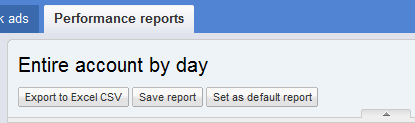
At the right side portion, find All time option as seen below:
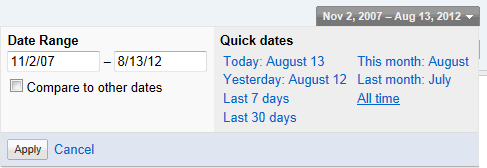
From the option, you’ll be able to analyze if your system is working or not, using the Performance graph…
That’s it! It will take time until all the data is ready to view.
Just maximize the rows by changing the option to 100.

Adsense is being run by Google and allows publishers to make money online through advertisements that can generate revenue on either a per-click or per-impression basis.
Thanks for reading the article - Keep on reading!
Go to link Download
Friday, September 23, 2016
Top 10 Ways to Speed Up Your Computers Boot Time
Top 10 Ways to Speed Up Your Computers Boot Time
10. Tweak Your BIOS

At the time you first set up your machine, your Bios is situated up to make things a smidge more favorable for you, however once youre everything set up, those things might be incapacitated. Assuming that you hold the Del nexus when you begin up your Pc (or whatever crux your Bios lets you know to enter setup), you can turn on the "Quick Boot" alternative and move your hard circle to the highest point of the boot necessity record. The Quick Boot setting will turn off the tests your machine runs when it first turns on, and the boot necessity tweak will advise your Pc not to search for Cds, thumb drives, or other media when it first begins, which will get you booted into your Os snappier. Provided that you ever need to boot from Cd however, youll need to do a reversal into the Bios and change this again before you do.
9. Clean Out Programs that Launch at Startup

A standout amongst the most tried and accurate routes to accelerate your boot process is to keep unnecessary modifies from beginning up with your workstation. You can do this by running
msconfig
from the Start Menus pursuit box, and heading off to the Startup tab. This provisions record will let you know what each of the aforementioned requisitions does, so you know which ones you can impair and which ones you would prefer not to. Long ago said Soluto is likewise a phenomenal path to clean up these modifies, and nowadays its got a pack of other helpful characteristics that make it worth a download
8. Delay Windows Services That Run at Startup

Numerous individuals contend that crippling Services from
msconfig
will likewise accelerate your boot time, yet weve discovered that this is more tricky than anything. Notwithstanding, you can defer certain startup administrations with the intention that your workstation boots rapidly then afterward stresses over them later—nonetheless, you dont require each one of the aforementioned administrations the moment you begin up your machine.
7. Change Your Boot Menus Timeout Values

In the event that youre double booting your machine, then your boot menu most likely has a "timeout worth", importance the measure of time it holds up for you to make a choice preceding it only boots into the default Os. On Windows, this timeout worth is regularly 30 seconds, which is quite a while to hold up provided that you arent turning straight toward your screen. To change this timeout worth, head to
msconfig
furthermore click on the Boot.ini tab, and change the number in the timeout box to something lower. In the event that youre double booting with Linux, youre presumably running the Grub boot menu, and you can change the timeout on that as well.
6. Disable Unused Hardware

Your workstation burdens a ton of drivers when it first begins up, some of which you may not even utilization. Head into the Device Manager from the Start Menus hunt box, and search for anything you arent utilizing Bluetooth controllers, modems, and virtual Wi-Fi connectors are normal guilty parties. Right-click on the section you need to cripple and hit "Disable". Recollect to just do this with things you dont truly utilize assuming that you utilize Wireless Hosted Networks, youll need to keep those virtual Wi-Fi connectors empowered. Its additionally worth specifying here that staying up with the latest will assist this allotment of the startup time, too (which you can do with the assistance of a project such as at one time said Device Doctor).
5. Keep Your Antivirus Running and Up to Date

This may as well go without colloquialism, yet well say it at any rate: instate a few antivirus programming, stay up with the latest, and run a customary sweep. This is to a greater degree a precaution measure than a real boot-speeding tip, yet in the event that you ever do get malware, its certain to abate your Pcs boot time. With an exceptional antivirus around like Microsoft Security Essentials, youll be more ensured against that event. Dont like Mse? There are some incredible ones out there too, so theres no excuse for why not to have one around.
4. Remove Unnecessary Fonts

Since the beginning of time, Windows has stacked fonts at startup and backed off the boot time. This is to a lesser extent an issue than it used to be, however it can even now back you off a touch. Windows 7 burdens over 200 fonts at startup; significantly more assuming that youve fixed Microsoft Office. Chances are, you utilize not many of the aforementioned fonts, so you can conceal them to accelerate that process. In Windows 7, open up the Fonts organizer from the Start Menus hunt box, and confirm all the fonts you dont require. At that point click the "Hide" bind in the toolbar. Along these lines, in the event that you ever need them, you can carry them, yet Windows wont stack them at startup. Note that simply uprooting a couple of fonts presumably isnt set to have a discernible effect youll most likely need to dispose of a couple of hundred. That said, you may have hundreds a bigger number of fonts commissioned than you acknowledged, so isnt as ludicrous as it sounds.
3. Upgrade Your RAM

Instituting more Ram has dependably been an adequate path of accelerating your workstation, and that hasnt updated. Ram is pretty shabby nowadays, so in the event that youre running flat, theres no excuse for why not to stock up and make your workstation run a bit smoother. Weve headed over how to supplant it in both a desktop and a smart phone, and indeed, for the unpracticed, its a pretty modest methodology.
2. Give Your Computer a Static IP

At the time you first begin up your Pc, it invests a huge measure of time soliciting from the system an Ip location. You can dispose of this procedure through and through by giving your workstation a static Ip address that never progressions. Not just does this make your system less demanding to administer (since every machine will dependably have the same Ip address), however it can shave a touch more time off your startup. Heres the way to destroy it diverse forms of Windows.
1. Install a Solid State Drive

In present times, your hard drive is presumably the grandest bottleneck in your machine. One of the best overhauls you can make to your Pc is to instate a robust state drive, which has super-quick perused times that can accelerate your startup impressively. Theyre absolutely not a shoddy update, nor are they without their own particular upkeep prerequisites, yet provided that you need to accelerate your machine and its boot time, you cant happen by instating a Ssd. The distinction will be stunning.
At the time you first set up your machine, your Bios is situated up to make things a smidge more favorable for you, however once youre everything set up, those things might be incapacitated. Assuming that you hold the Del nexus when you begin up your Pc (or whatever crux your Bios lets you know to enter setup), you can turn on the "Quick Boot" alternative and move your hard circle to the highest point of the boot necessity record. The Quick Boot setting will turn off the tests your machine runs when it first turns on, and the boot necessity tweak will advise your Pc not to search for Cds, thumb drives, or other media when it first begins, which will get you booted into your Os snappier. Provided that you ever need to boot from Cd however, youll need to do a reversal into the Bios and change this again before you do.
9. Clean Out Programs that Launch at Startup
A standout amongst the most tried and accurate routes to accelerate your boot process is to keep unnecessary modifies from beginning up with your workstation. You can do this by running
msconfig
from the Start Menus pursuit box, and heading off to the Startup tab. This provisions record will let you know what each of the aforementioned requisitions does, so you know which ones you can impair and which ones you would prefer not to. Long ago said Soluto is likewise a phenomenal path to clean up these modifies, and nowadays its got a pack of other helpful characteristics that make it worth a download
8. Delay Windows Services That Run at Startup
Numerous individuals contend that crippling Services from
msconfig
will likewise accelerate your boot time, yet weve discovered that this is more tricky than anything. Notwithstanding, you can defer certain startup administrations with the intention that your workstation boots rapidly then afterward stresses over them later—nonetheless, you dont require each one of the aforementioned administrations the moment you begin up your machine.
7. Change Your Boot Menus Timeout Values
In the event that youre double booting your machine, then your boot menu most likely has a "timeout worth", importance the measure of time it holds up for you to make a choice preceding it only boots into the default Os. On Windows, this timeout worth is regularly 30 seconds, which is quite a while to hold up provided that you arent turning straight toward your screen. To change this timeout worth, head to
msconfig
furthermore click on the Boot.ini tab, and change the number in the timeout box to something lower. In the event that youre double booting with Linux, youre presumably running the Grub boot menu, and you can change the timeout on that as well.
6. Disable Unused Hardware
Your workstation burdens a ton of drivers when it first begins up, some of which you may not even utilization. Head into the Device Manager from the Start Menus hunt box, and search for anything you arent utilizing Bluetooth controllers, modems, and virtual Wi-Fi connectors are normal guilty parties. Right-click on the section you need to cripple and hit "Disable". Recollect to just do this with things you dont truly utilize assuming that you utilize Wireless Hosted Networks, youll need to keep those virtual Wi-Fi connectors empowered. Its additionally worth specifying here that staying up with the latest will assist this allotment of the startup time, too (which you can do with the assistance of a project such as at one time said Device Doctor).
5. Keep Your Antivirus Running and Up to Date
This may as well go without colloquialism, yet well say it at any rate: instate a few antivirus programming, stay up with the latest, and run a customary sweep. This is to a greater degree a precaution measure than a real boot-speeding tip, yet in the event that you ever do get malware, its certain to abate your Pcs boot time. With an exceptional antivirus around like Microsoft Security Essentials, youll be more ensured against that event. Dont like Mse? There are some incredible ones out there too, so theres no excuse for why not to have one around.
4. Remove Unnecessary Fonts
Since the beginning of time, Windows has stacked fonts at startup and backed off the boot time. This is to a lesser extent an issue than it used to be, however it can even now back you off a touch. Windows 7 burdens over 200 fonts at startup; significantly more assuming that youve fixed Microsoft Office. Chances are, you utilize not many of the aforementioned fonts, so you can conceal them to accelerate that process. In Windows 7, open up the Fonts organizer from the Start Menus hunt box, and confirm all the fonts you dont require. At that point click the "Hide" bind in the toolbar. Along these lines, in the event that you ever need them, you can carry them, yet Windows wont stack them at startup. Note that simply uprooting a couple of fonts presumably isnt set to have a discernible effect youll most likely need to dispose of a couple of hundred. That said, you may have hundreds a bigger number of fonts commissioned than you acknowledged, so isnt as ludicrous as it sounds.
3. Upgrade Your RAM
Instituting more Ram has dependably been an adequate path of accelerating your workstation, and that hasnt updated. Ram is pretty shabby nowadays, so in the event that youre running flat, theres no excuse for why not to stock up and make your workstation run a bit smoother. Weve headed over how to supplant it in both a desktop and a smart phone, and indeed, for the unpracticed, its a pretty modest methodology.
2. Give Your Computer a Static IP
At the time you first begin up your Pc, it invests a huge measure of time soliciting from the system an Ip location. You can dispose of this procedure through and through by giving your workstation a static Ip address that never progressions. Not just does this make your system less demanding to administer (since every machine will dependably have the same Ip address), however it can shave a touch more time off your startup. Heres the way to destroy it diverse forms of Windows.
1. Install a Solid State Drive
In present times, your hard drive is presumably the grandest bottleneck in your machine. One of the best overhauls you can make to your Pc is to instate a robust state drive, which has super-quick perused times that can accelerate your startup impressively. Theyre absolutely not a shoddy update, nor are they without their own particular upkeep prerequisites, yet provided that you need to accelerate your machine and its boot time, you cant happen by instating a Ssd. The distinction will be stunning.
Go to link Download
Subscribe to:
Posts (Atom)