Tuesday, November 22, 2016
Using BCDEDIT to change and modify Windows Boot Entries
Using BCDEDIT to change and modify Windows Boot Entries
Booting is the so called “bootstrapping” that processes and starts the OS (operating system) when the user turns on the computer. A boot sequence is the initial group of operations that the computer operates.
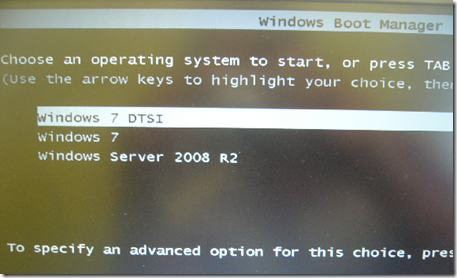
In Windows Server, 7 and Vista the bootloader file contains the necessary information is located in [root directory] ootmgr. For Windows XP, the file is tldr.
Bcdedit is a powerful tool that Windows Vista, 7 and Server 2008 uses to manage the boot entry option value in the Windows boot configuration data store (BCD).
Easiest way to edit the boot loader entry names
Open your Command Interpreter > Win + R > and type “cmd.exe” > and use the following command
| bcdedit /set {current} description "any name" |
Restart your computer to see the results…
For Windows XP users, you can read this old blog article that I wrote.
Note: It is important to backup the bcd entries first:
| bcdedit /export c:savebcdentry |
To undo the changes:
| bcdedit /import c:savebcdentry |
How to delete entry from the list
| Microsoft Windows [Version 6.0.6001] C:Windowssystem32>bcdedit Windows Boot Manager Windows Boot Loader Windows Boot Loader C:Windowssystem32> |
First, you need to know the identifier value by launching “bcdedit” as shown above and after that, you can now delete the entry “dummy OS” by using the command:
bcdedit /delete {a1d3593a-5b7-11e0-9e3c-d0a2d26a53be}
For more detailed information from Microsoft, read here..
http://WindowsForUs.com?bcdeditms3
Thanks for reading the guide!
Go to link Download

Sunday, November 20, 2016
Warm boot Cold boot Differences between Cold and Warm Booting
Warm boot Cold boot Differences between Cold and Warm Booting

Cold Booting
A cold boot is a boot process in which the computer starts from a powerless state.
The start-up of a computer from a powered-down, or off, state.
Warm Booting
Refers to restarting a computer that is already turned on via the operating system. Restarting it returns the computer to its initial state. A warm boot is sometimes necessary when a program encounters an error from which it cannot recover. On PCs, you can perform a warm boot by pressing the Control, Alt, and Delete keys simultaneously. On Macs, you can perform a warm boot by pressing the Restart button.
Go to link Download
Friday, October 14, 2016
Windows Boot Genius 2 0 0 1
Windows Boot Genius 2 0 0 1

- Boot up computer that wont boot
- Fix all booting problems: Blue/black screen, crash, freeze, etc.
- Troubleshoot corrupt Windows system
- Quite easy for computer beginners
Burn a Windows Boot Disk
- Burn bootable ISO Image into a disk with built-in CD/DVD/USB burning software.
- This boot disk is flexible for you to choose the right bootable medium: CD/DVD or USB flash drive.
- From burned bootable disk, you can start up your computer and work under WinPE.
Boot up any Computer
- Boot up any laptop or desktop when you cant enter Windows installed on your hard drive.
- Work with any computer brand: Dell, Acer, Asus, Sony, HP, Toshiba, Lenovo, etc.
- Supports Windows 8.1/8/7/Vista/XP (32-bit & 64-bit), Windows Server 2012 (R2)/2008 (R2) and lower versions.
Fix all Booting Issues
- Fix all startup issues, including Blue Screen of Death, Black Screen of Death, freezes, and crashes.
- It repairs computer that keeps rebooting or wont boot at all.
- Recover missing boot sector to fix "NTLDR is Missing", "BOOTMGR is Missing" errors etc.
- Repair crashed MBR, corrupt registry, virus-infected registry key value and partition table.
Recover Data from Crashed Computer
- Recover your family photos, video and music collections, and other files.
- Recover files lost due to inadvertent deletion, formatting or corrupt.
- Repair corrupt, altered, or lost partition table.
- It reduce the risk of overwriting data that you want to recover since it boot your computer from boot disk, rather than loading from the hard disk drive
Backup & Restore files and Windows
- Backup Windows system, applications, and files before you start to troubleshoot Windows or a hard drive actually crashes.
- Restore Windows after a computer a crash without reinstalling Windows OS.
- Clone a partition or hard drive when you need to copy old drive to a new drive.
Repartition Hard Disk
- Create, delete, format, and resize partition without losing data.
- Convert FAT/FAT32/NTFS partitions.
Find Lost Passwords & Keys
- Recover lost Windows local administrator/user passwords in Windows 8.1, 8, 7, Vista, XP.
- Recover domain administrator and user password in Windows Server 2012/2008(R2) and etc.
- If youre planning to reinstall Windows, find Windows product key, Office product key, SQL server Key.
================
[INSTALL NOTES]
================
Step 1: Please use 7Zip/WinRAR/Universal Extractor to EXTRACT FILES.
Step 2: Read The Instruction.txt file
Go to link Download
Friday, September 23, 2016
Top 10 Ways to Speed Up Your Computers Boot Time
Top 10 Ways to Speed Up Your Computers Boot Time

At the time you first set up your machine, your Bios is situated up to make things a smidge more favorable for you, however once youre everything set up, those things might be incapacitated. Assuming that you hold the Del nexus when you begin up your Pc (or whatever crux your Bios lets you know to enter setup), you can turn on the "Quick Boot" alternative and move your hard circle to the highest point of the boot necessity record. The Quick Boot setting will turn off the tests your machine runs when it first turns on, and the boot necessity tweak will advise your Pc not to search for Cds, thumb drives, or other media when it first begins, which will get you booted into your Os snappier. Provided that you ever need to boot from Cd however, youll need to do a reversal into the Bios and change this again before you do.
9. Clean Out Programs that Launch at Startup

A standout amongst the most tried and accurate routes to accelerate your boot process is to keep unnecessary modifies from beginning up with your workstation. You can do this by running
msconfig
from the Start Menus pursuit box, and heading off to the Startup tab. This provisions record will let you know what each of the aforementioned requisitions does, so you know which ones you can impair and which ones you would prefer not to. Long ago said Soluto is likewise a phenomenal path to clean up these modifies, and nowadays its got a pack of other helpful characteristics that make it worth a download
8. Delay Windows Services That Run at Startup

Numerous individuals contend that crippling Services from
msconfig
will likewise accelerate your boot time, yet weve discovered that this is more tricky than anything. Notwithstanding, you can defer certain startup administrations with the intention that your workstation boots rapidly then afterward stresses over them later—nonetheless, you dont require each one of the aforementioned administrations the moment you begin up your machine.
7. Change Your Boot Menus Timeout Values

In the event that youre double booting your machine, then your boot menu most likely has a "timeout worth", importance the measure of time it holds up for you to make a choice preceding it only boots into the default Os. On Windows, this timeout worth is regularly 30 seconds, which is quite a while to hold up provided that you arent turning straight toward your screen. To change this timeout worth, head to
msconfig
furthermore click on the Boot.ini tab, and change the number in the timeout box to something lower. In the event that youre double booting with Linux, youre presumably running the Grub boot menu, and you can change the timeout on that as well.
6. Disable Unused Hardware

Your workstation burdens a ton of drivers when it first begins up, some of which you may not even utilization. Head into the Device Manager from the Start Menus hunt box, and search for anything you arent utilizing Bluetooth controllers, modems, and virtual Wi-Fi connectors are normal guilty parties. Right-click on the section you need to cripple and hit "Disable". Recollect to just do this with things you dont truly utilize assuming that you utilize Wireless Hosted Networks, youll need to keep those virtual Wi-Fi connectors empowered. Its additionally worth specifying here that staying up with the latest will assist this allotment of the startup time, too (which you can do with the assistance of a project such as at one time said Device Doctor).
5. Keep Your Antivirus Running and Up to Date

This may as well go without colloquialism, yet well say it at any rate: instate a few antivirus programming, stay up with the latest, and run a customary sweep. This is to a greater degree a precaution measure than a real boot-speeding tip, yet in the event that you ever do get malware, its certain to abate your Pcs boot time. With an exceptional antivirus around like Microsoft Security Essentials, youll be more ensured against that event. Dont like Mse? There are some incredible ones out there too, so theres no excuse for why not to have one around.
4. Remove Unnecessary Fonts

Since the beginning of time, Windows has stacked fonts at startup and backed off the boot time. This is to a lesser extent an issue than it used to be, however it can even now back you off a touch. Windows 7 burdens over 200 fonts at startup; significantly more assuming that youve fixed Microsoft Office. Chances are, you utilize not many of the aforementioned fonts, so you can conceal them to accelerate that process. In Windows 7, open up the Fonts organizer from the Start Menus hunt box, and confirm all the fonts you dont require. At that point click the "Hide" bind in the toolbar. Along these lines, in the event that you ever need them, you can carry them, yet Windows wont stack them at startup. Note that simply uprooting a couple of fonts presumably isnt set to have a discernible effect youll most likely need to dispose of a couple of hundred. That said, you may have hundreds a bigger number of fonts commissioned than you acknowledged, so isnt as ludicrous as it sounds.
3. Upgrade Your RAM

Instituting more Ram has dependably been an adequate path of accelerating your workstation, and that hasnt updated. Ram is pretty shabby nowadays, so in the event that youre running flat, theres no excuse for why not to stock up and make your workstation run a bit smoother. Weve headed over how to supplant it in both a desktop and a smart phone, and indeed, for the unpracticed, its a pretty modest methodology.
2. Give Your Computer a Static IP

At the time you first begin up your Pc, it invests a huge measure of time soliciting from the system an Ip location. You can dispose of this procedure through and through by giving your workstation a static Ip address that never progressions. Not just does this make your system less demanding to administer (since every machine will dependably have the same Ip address), however it can shave a touch more time off your startup. Heres the way to destroy it diverse forms of Windows.
1. Install a Solid State Drive

In present times, your hard drive is presumably the grandest bottleneck in your machine. One of the best overhauls you can make to your Pc is to instate a robust state drive, which has super-quick perused times that can accelerate your startup impressively. Theyre absolutely not a shoddy update, nor are they without their own particular upkeep prerequisites, yet provided that you need to accelerate your machine and its boot time, you cant happen by instating a Ssd. The distinction will be stunning.
Go to link Download