Tuesday, November 22, 2016
Using BCDEDIT to change and modify Windows Boot Entries
Using BCDEDIT to change and modify Windows Boot Entries
Booting is the so called “bootstrapping” that processes and starts the OS (operating system) when the user turns on the computer. A boot sequence is the initial group of operations that the computer operates.
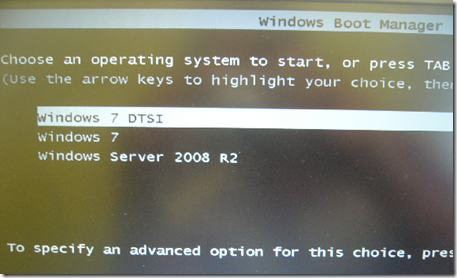
In Windows Server, 7 and Vista the bootloader file contains the necessary information is located in [root directory] ootmgr. For Windows XP, the file is tldr.
Bcdedit is a powerful tool that Windows Vista, 7 and Server 2008 uses to manage the boot entry option value in the Windows boot configuration data store (BCD).
Easiest way to edit the boot loader entry names
Open your Command Interpreter > Win + R > and type “cmd.exe” > and use the following command
| bcdedit /set {current} description "any name" |
Restart your computer to see the results…
For Windows XP users, you can read this old blog article that I wrote.
Note: It is important to backup the bcd entries first:
| bcdedit /export c:savebcdentry |
To undo the changes:
| bcdedit /import c:savebcdentry |
How to delete entry from the list
| Microsoft Windows [Version 6.0.6001] C:Windowssystem32>bcdedit Windows Boot Manager Windows Boot Loader Windows Boot Loader C:Windowssystem32> |
First, you need to know the identifier value by launching “bcdedit” as shown above and after that, you can now delete the entry “dummy OS” by using the command:
bcdedit /delete {a1d3593a-5b7-11e0-9e3c-d0a2d26a53be}
For more detailed information from Microsoft, read here..
http://WindowsForUs.com?bcdeditms3
Thanks for reading the guide!
Go to link Download

Friday, September 23, 2016
Windows 8 Start Menu Button – Download Restore Change it
Windows 8 Start Menu Button – Download Restore Change it
With the introduction of Windows 8 in the market users booted up Windows 8 for the first time. No doubt it delivered a number of major design changes but navigating the Start button has been quite as controversial. But need not to be worry there are many alternative to this such as replacement of start menu. You can simply download Windows 8 Start Menu Applications and install it in your system. Some applications are totally free such as Classic shell.
Download Windows 8 Start Menu Button and Restore it
There are some contenders to choose from and so you can restore the Windows 8 start menu button which are categorized as below:Go to link Download