Saturday, November 26, 2016
Windows Command Guide 2008
Windows Command Guide 2008

Last Updated: Dec 2015
Connect to a Network Projector: netproj
Sync Center: mobsync
Resource Monitor: perfmon /res
Performance Monitor: perfmon.msc
Component Services: comexp.msc
Print Management: printmanagement.msc
Windows Memory Diagnostic: mdsched
Math Input Panel: mip
Tablet PC Input Panel: tabtip
Windows Journal: journal
Windows PowerShell ISE (Integrated Scripting Environment) : powershell_ise
Windows PowerShell V2: powershell
Create a System Repair Disc: recdisc
Windows Remote Assistance: msra
XPS Viewer: xpsrchvw
Desktop Gadget Gallery: sidebar /showgadgets
Windows Fax and Scan: wfs
Send feedback: control -name microsoft.feedbacktool
Sticky Notes: stikynot
Scan Management: scanmanagement.msc
Security Configuration Management: secpol.msc
Services For Network File System: nfsmgmt.msc
And many more commands in the pdf file. download the updated file.
Please refer to this previous article to know more about.


For more commands and complete lists download free guide from the above or click here.
----------------------
Posted by: bcdalai
Go to link Download

Wednesday, September 14, 2016
Using Subst command to create virtual drives
Using Subst command to create virtual drives
Subst is being use to associate or substitutes folders as virtual drives. The command lets you access data easily and By functionality, its almost the same as creating folders to computer window.
Lets try using the command by creating drive S: using the folder c:files.
type “cmd” at Start search, and follow the command below

s: – virtual drive letter
files – folder that you want to associate (c:files)
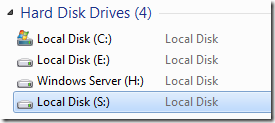
Afterwards, you’ll see the virtual drive instantly. Anyway, the problem with the command, when the computer restarts, all created virtual drives will be deleted automatically.
So, Let’s solve and try loading the commands before logging into windows.
Open your Notepad and write the command
| subst s: c:myfilesvideos subst x: c: ackup |
Use File > Save As and go to the following folder location
C:Users[username]AppDataRoamingMicrosoftWindowsStart MenuProgramsStartup
Make sure that you Click ALL Files (*.*) and write the filename
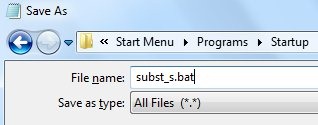
Great?!
To delete any virtual drive use the command SUBST Drive /d
e.g. Subst s: /d
Usage
| C:Usersmstouch>subst /? SUBST [drive1: [drive2:]path] SUBST drive1: /D drive1: Specifies a virtual drive to which you want to assign a path. [drive2:]path Specifies a physical drive and path you want to assign to a virtual drive. /D Deletes a substituted (virtual) drive. Type SUBST with no parameters to display a list of current virtual drives. C:Usersmstouch> |
Thanks for reading the article!
Go to link Download